
What the Reports section is
The Reports page (/reports in the sidebar) is your read-only view of business activity in reservie. Each report is purpose-built for a specific question — who’s been booking?, what did we earn?, who turned up? — and you can export the underlying data to CSV whenever you need it in a spreadsheet or for your accountant.
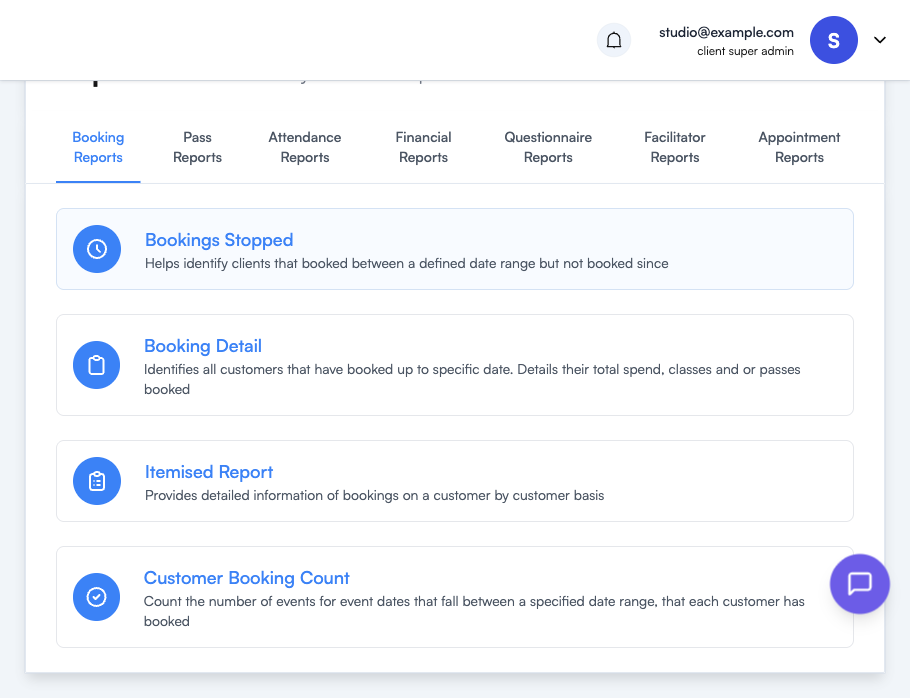
Reports are grouped into eight tabs across the top of the page. Each tab has its own guide:
| Tab | What’s in it | Guide |
|---|---|---|
| Booking Reports | Who’s booking, who’s gone quiet, and per-customer detail | Booking Reports |
| Customer Reports | Customers who have agreed to receive your marketing emails | Customer Reports |
| Pass Reports | Pass purchases over time | Pass Reports |
| Attendance Reports | Who turned up, who missed, and waiting-list activity | Attendance Reports |
| Financial Reports | Income, per-event earnings, and category/class breakdowns | Financial Reports |
| Questionnaire Reports | Responses to your forms | Questionnaire Reports |
| Facilitator Reports | Who’s assigned to what, including covers | Facilitator Reports |
| Appointment Reports | One-to-one appointment bookings | Appointment Reports |
Running a report
Click any report card to open it. Most reports follow the same pattern:
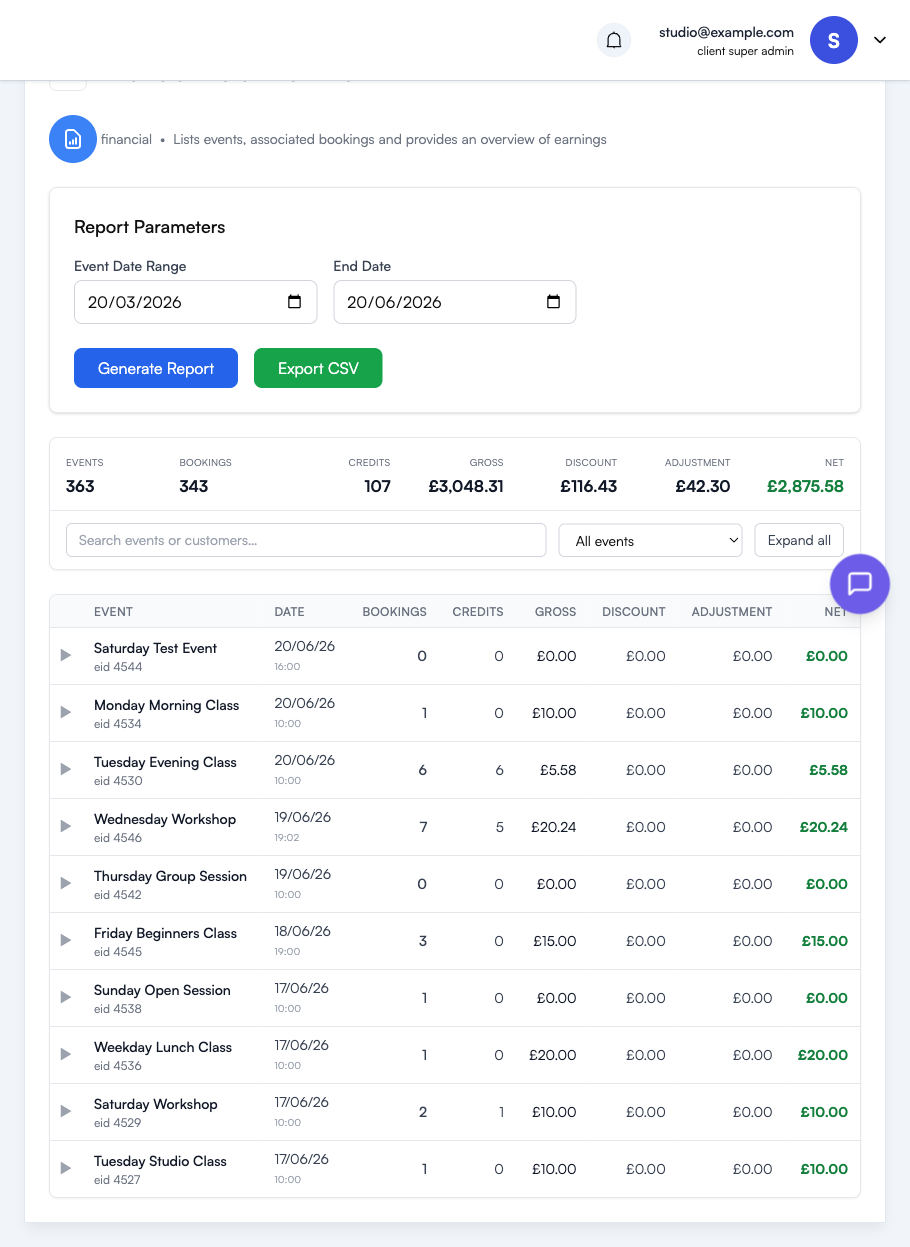
- Set the parameters — usually a date range, sometimes a specific event, category or facilitator.
- Click Generate Report to run it.
- Review the results — a summary bar across the top totals the key figures, and the table below breaks them down row by row.
- Search, filter and expand — use the search box to find a specific event or customer, the dropdown to filter, and the arrow on any row to expand it for the detail behind the numbers.
- Export CSV — click Export CSV to take the full dataset into a spreadsheet or send it to your accountant.
A note on empty tabs
If a tab or report shows nothing, it usually means there’s no data for it yet — for example, Questionnaire Reports populate once customers start submitting responses, and Appointment Reports once you take one-to-one bookings. More reports are added over time, so it’s worth checking back.
Where to go next
- For finance — see Accepting Payments Online for the Stripe-side view
- For attendance — see Managing Event Registrations for marking customers as attended
- For passes — see Getting Started with Passes