
Overview
Facilitators represent the teachers, instructors, or staff who deliver your classes and events. Adding someone as a facilitator grants them limited access to view event registers and manage attendance for the events they are assigned to.
Facilitators are managed from the Facilitators page in the sidebar menu.
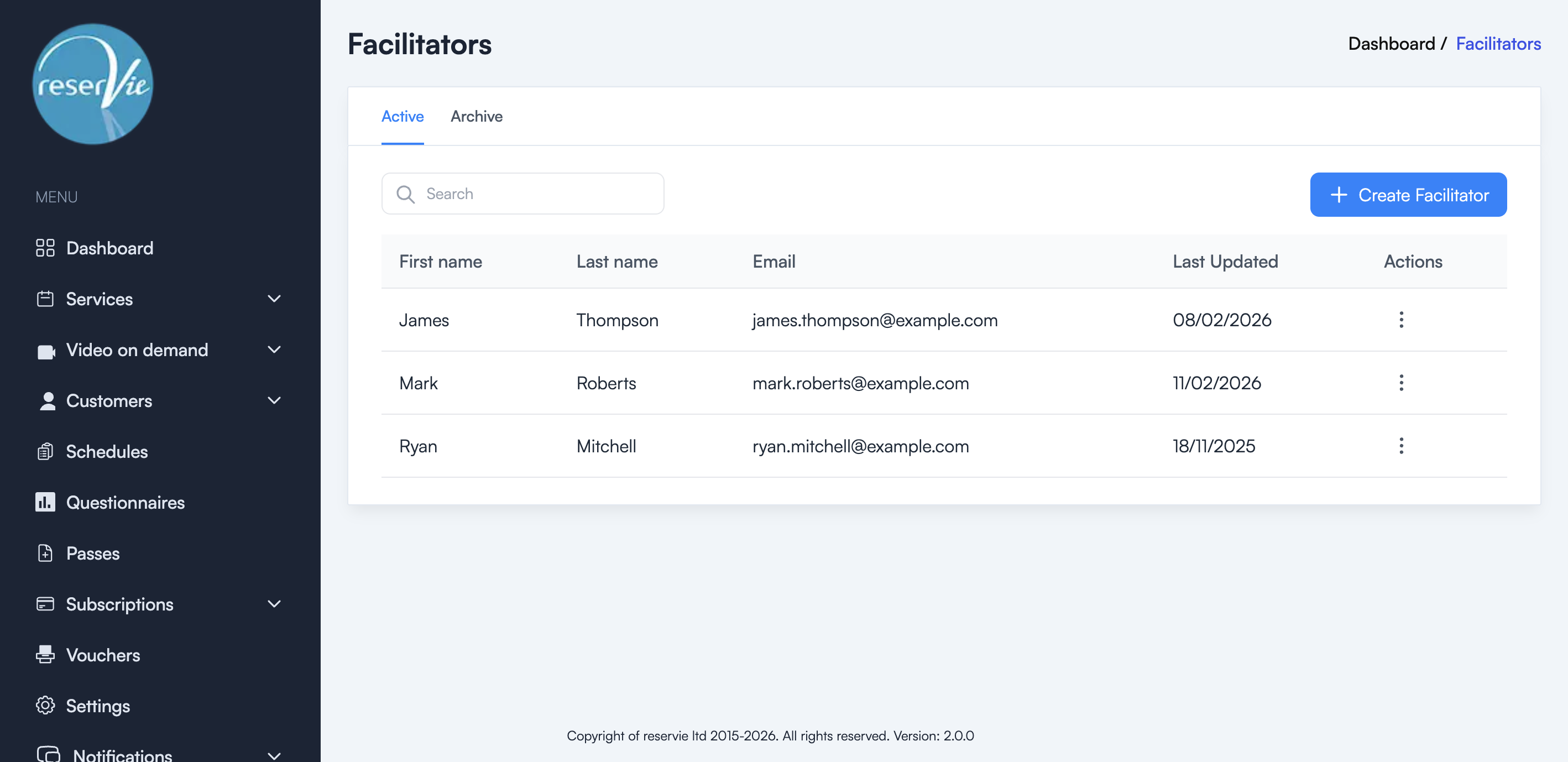
Viewing facilitators
The Facilitators page displays all your facilitators in a table with Active and Archive tabs.
| Column | Description |
|---|---|
| First name | The facilitator’s first name |
| Last name | The facilitator’s last name |
| The facilitator’s email address (used for login) | |
| Last Updated | When the facilitator record was last modified |
| Actions | Edit or manage the facilitator |
Use the Search bar to quickly find a specific facilitator by name or email.
Adding a facilitator
- Navigate to Facilitators from the sidebar menu.
- Click the + Create Facilitator button.
- Complete the form with the facilitator’s details:
- First name
- Last name
- Email address — Must be unique. This is the email the facilitator will use to log in.
- Click Save to create the facilitator.
The facilitator will receive an email with their login credentials, including a temporary password that they can change on first login.
Important: Each facilitator must have a unique email address, as this is how the system identifies them.
Granting event access
Adding someone as a facilitator gives them an account, but they also need to be assigned to specific events to access those event registers.
To assign a facilitator to an event:
- Navigate to Services > Events from the sidebar menu.
- Create a new event or edit an existing one.
- In the event properties, select the facilitator from the facilitator dropdown.
- Save the event.
The facilitator will then be able to see and manage the register for that event.
Facilitator login
Once added, facilitators log in to their own area, which is separate from yours. Their address looks like this:
https://cloud.reservie.app/facilitator/<your-company>/login
Replace <your-company> with your own company identifier. So if yours is sunshine-yoga, your facilitators would go to:
https://cloud.reservie.app/facilitator/sunshine-yoga/login
It is worth sending that full address to your facilitators rather than letting them search for it, because there is an older address that still works and leads somewhere confusing. If they go to https://<your-company>.reservie.net/facilitators they will land in the previous version of the facilitator area, which looks different and will not show everything they expect.
From the facilitator area, they can:
- View registers for their assigned events
- Mark attendance for participants
- See upcoming scheduled sessions
Archiving a facilitator
To remove a facilitator’s access without deleting their record:
- Click the three-dot menu in the Actions column next to the facilitator.
- Select Archive.
Archived facilitators can be viewed under the Archive tab and restored if needed.