
What Mobile Connect is
Reservie Connect is the iOS and Android mobile app your customers download to book and manage classes with your studio. Each studio that’s enabled for Mobile Connect gets a unique QR code — customers scan it once and the app remembers which studio they belong to.
For your customers, that means:
- A native app on their phone (no website hunting, no bookmarking)
- Push notifications for upcoming classes and reminders
- One-tap rebooking of regular classes
- Faster login — they stay signed in between sessions
For you, no separate app to build or maintain — Reservie Connect is one shared app, and each studio appears as its own destination inside it once a customer scans the QR code.
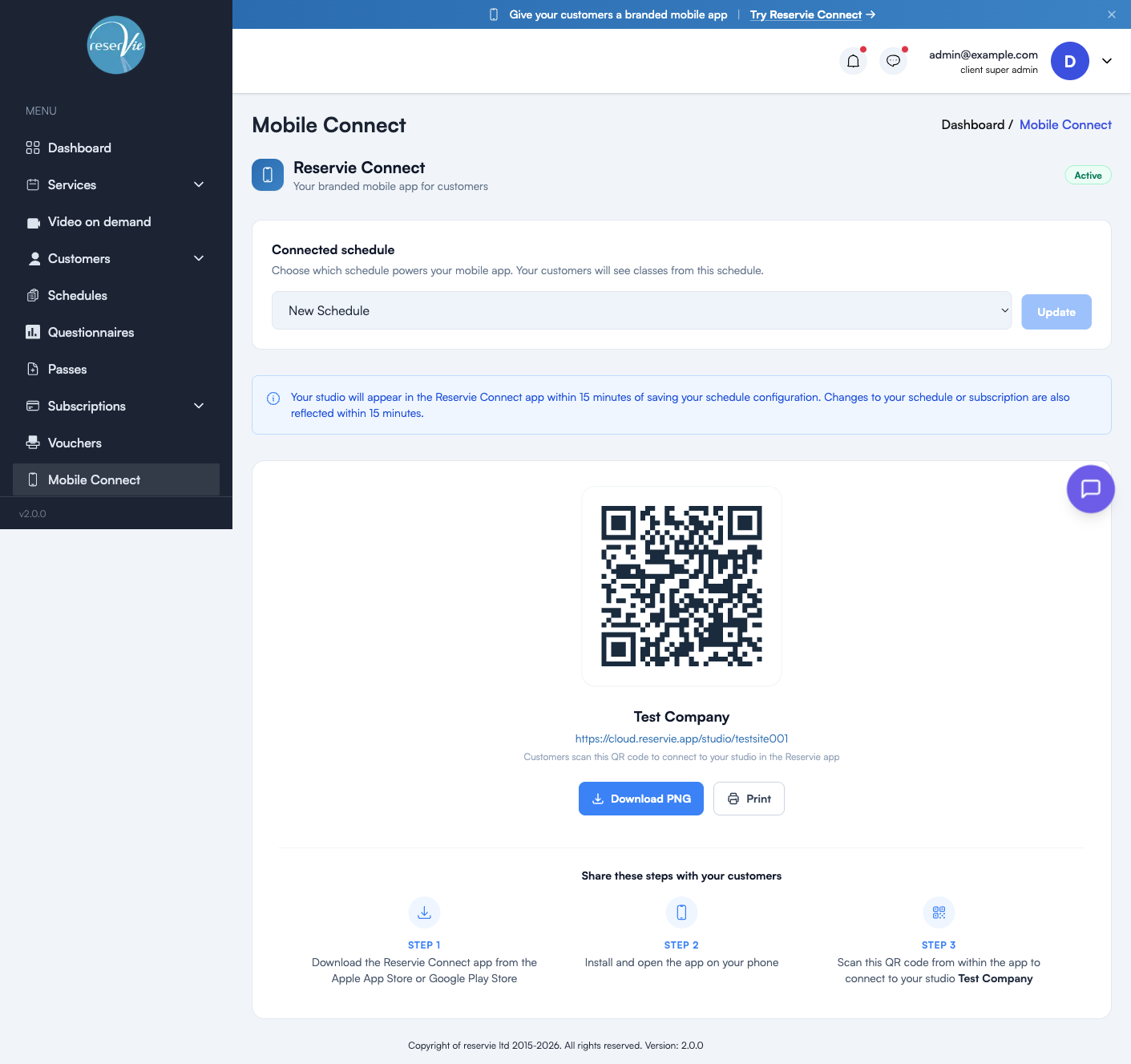
The Mobile Connect setup page is at Mobile Connect in the sidebar.
Setup at a glance
There are three things to do once Mobile Connect is enabled on your account:
- Pick which schedule powers the app — what your customers will see when they open it
- Wait up to 15 minutes for changes to propagate
- Share the QR code with your customers so they can connect their app to your studio
That’s it. No app store submission, no design work, no build process.
Connecting a schedule
The Connected schedule card at the top of the page is the most important setting. It controls which of your reservie schedules is shown to customers in the app.
| Element | What it does |
|---|---|
| Schedule dropdown | Pick the schedule that contains the classes you want app users to see and book |
| Update button | Save the connected schedule (grays out until you select a different schedule) |
Once connected, the app pulls all upcoming registrations from that schedule and presents them in a clean booking timeline. Customers can book individual classes, see waiting list status, and view their booking history.
Important: changes to your schedule (or your subscription) take up to 15 minutes to appear in the app. This applies to both adding the studio for the first time and reflecting later schedule edits.
The QR code
The bottom of the page shows the QR code your customers scan to connect their app to your studio. Beneath it:
- Your studio name (e.g. “Test Company”)
- Your studio URL in the format
https://cloud.reservie.app/studio/<your-subdomain> - A Download PNG button — for embedding in newsletters, emails, or your website
- A Print button — for posters at the studio, flyers, or front-desk hand-outs
The QR code never changes for your studio — once a customer scans it, they’re permanently connected. You can re-share the same code as often as you like.
Three-step customer flow
The bottom of the page shows the exact three steps to share with customers:
- Download the Reservie Connect app from the Apple App Store or Google Play Store
- Install and open the app on their phone
- Scan the QR code from within the app to connect to your studio
We’d recommend you take this exact wording (or the screenshot of the bottom panel) and put it on a poster at your studio entrance, in your welcome email, or in a recurring newsletter footer. The fewer steps customers have to figure out for themselves, the higher the adoption rate.
Common questions
”Can I have my own white-label app?”
Reservie Connect is the branded app — your studio shows up with your name and your branding once a customer is connected. If you need a fully separate app with its own App Store listing, contact us about enterprise options.
”What if I change which schedule is connected later?”
You can switch the connected schedule at any time. Customers’ bookings on the previous schedule are unaffected — they’ll see future bookings continue to function. The app will start showing the new schedule’s classes within 15 minutes.
”Can I have multiple schedules in the app?”
Today, one schedule per studio is connected at a time. If you run multiple distinct schedules (e.g. a teaching schedule + a workshops-only schedule), pick the one that contains the bulk of regular customer-facing classes.
”Does the customer see my prices, passes, and subscriptions?”
Yes — pricing, available passes, and subscription options are pulled from your account and shown in-app exactly as they appear on your booking widgets.
”What happens if my subscription lapses?”
If the Mobile Connect feature is part of a subscription tier and that subscription lapses, your studio is removed from the app within 15 minutes. Customers’ historical bookings are kept; new bookings go via your standard widgets/website until you reactivate.