
What this tab is for
Settings → Apple Pay controls whether the Apple Pay button appears at checkout, and which domains are registered to host your booking pages. Google Pay piggybacks on the same payment-request setup and is enabled automatically — there’s no Google Pay toggle to manage.
Wix and Squarespace can’t use this
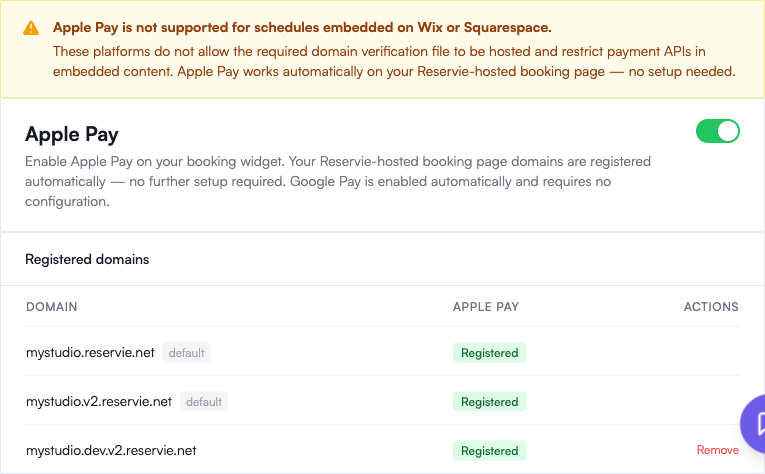
A banner at the top of the tab calls this out, and it’s worth reading first:
Apple Pay is not supported for schedules embedded on Wix or Squarespace. These platforms do not allow the required domain verification file to be hosted and restrict payment APIs in embedded content. Apple Pay works automatically on your Reservie-hosted booking page — no setup needed.
If your customers book exclusively via your Wix or Squarespace site, there’s nothing to configure here — they’ll still see card, but not Apple Pay. Point them at your hosted booking page (<your-subdomain>.reservie.net) if Apple Pay matters to them.
Enable / disable Apple Pay
A single toggle switch at the top of the Apple Pay section. When on:
- Customers paying on your Reservie-hosted booking page see the Apple Pay button if their device supports it
- Customers using your widget on a custom domain that you’ve registered below see the same
- Google Pay also enables automatically (it shares the underlying payment-request flow)
When off, the button is hidden everywhere even on your registered domains. Card payment continues to work normally.
Registered domains
The Registered domains table lists every domain that’s currently allowed to display the Apple Pay button.
| Column | Notes |
|---|---|
| Domain | Hostname. Reservie-hosted domains are tagged default and can’t be removed |
| Apple Pay | Registered (verified and live), or another status while verification is in progress |
| Actions | Remove button — only available on custom domains you’ve added |
Two Reservie-hosted domains are always pre-registered for every studio:
<your-subdomain>.reservie.net(the production booking page)<your-subdomain>.v2.reservie.net(the V2 booking page)
These are tagged default and are managed automatically — you can’t remove them.
Add a custom domain
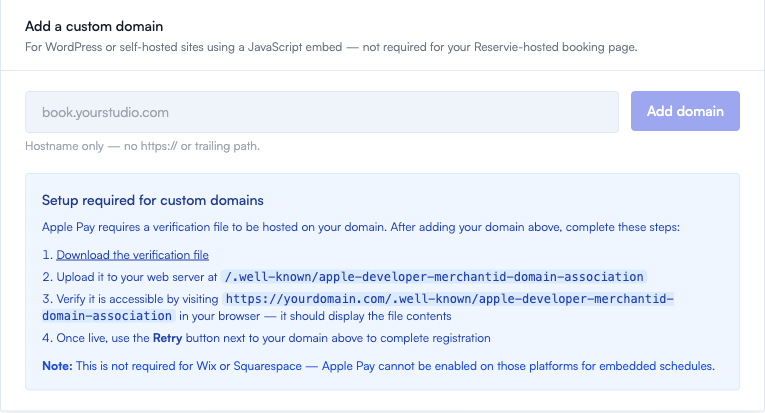
If you embed the Reservie widget on your own site at a domain like book.yourstudio.com, you need to register that domain here so Apple Pay can verify it.
You only need this if you embed the widget on a self-hosted domain (WordPress, custom site, etc.). Your Reservie-hosted booking page is registered automatically.
Step-by-step
- Type the hostname into the input (e.g.
book.yourstudio.com). Hostname only — nohttps://, no trailing path. - Click Add domain. The domain appears in the Registered domains table above with a pending status.
- Download the verification file from the link in the setup-required panel (it’s hosted by Stripe).
- Upload it to your web server at the path:
The file goes at the exact path above, with no extension and exactly that filename./.well-known/apple-developer-merchantid-domain-association - Verify the file is reachable by visiting:
in a browser. You should see the file contents print to the page (a long base-64-looking blob). If you get a 404 or a redirect, the file isn’t in place yet.https://yourdomain.com/.well-known/apple-developer-merchantid-domain-association - Click Retry next to the domain in the Registered domains table. Apple will fetch the file, confirm it matches the merchant ID, and flip the status to Registered.
If your hosting setup makes /.well-known/... paths tricky (some static site builders block dotfiles), you may need to configure a rewrite or contact your host.
Common scenarios
”Apple Pay isn’t showing on my booking page.”
Walk through the checks in order:
- Is the toggle on? It’s the master switch.
- Is the domain registered? Reservie-hosted pages are automatic. Custom domains need explicit registration.
- Is the customer’s device capable? Apple Pay only appears on iPhones, iPads, and Macs with a card linked to Wallet. Android shows Google Pay instead (also automatic).
- Is the page being served over HTTPS? Apple Pay won’t show on plain HTTP.
- Is the embedded site Wix or Squarespace? Per the banner — not supported.
”I added a domain but Apple Pay still says verification pending.”
Most common cause: the verification file isn’t reachable at the exact path Apple expects. Open the URL from step 5 above in a browser and check it returns the file contents (not HTML, not a redirect, not a 404). Once that works, click Retry.
”I’m moving to a new domain — what’s the order?”
Add the new domain and verify it before changing the embed code on your site, so there’s no gap. Once the new domain is Registered and your widget is updated to load from it, you can Remove the old custom domain. Default *.reservie.net domains stay either way.
Where to go next
- Settings Overview — the other Settings tabs
- Accepting Payments Online — the Stripe-Connect setup that backs all card / Apple Pay / Google Pay payments
- Adding Reservie to your Website — the widget embed flow that uses custom domains