
Overview
The Templates page is where you manage all notification templates. Navigate to Notifications > Templates in the sidebar menu. You can switch between the System and User tabs to view the different template types.
System templates
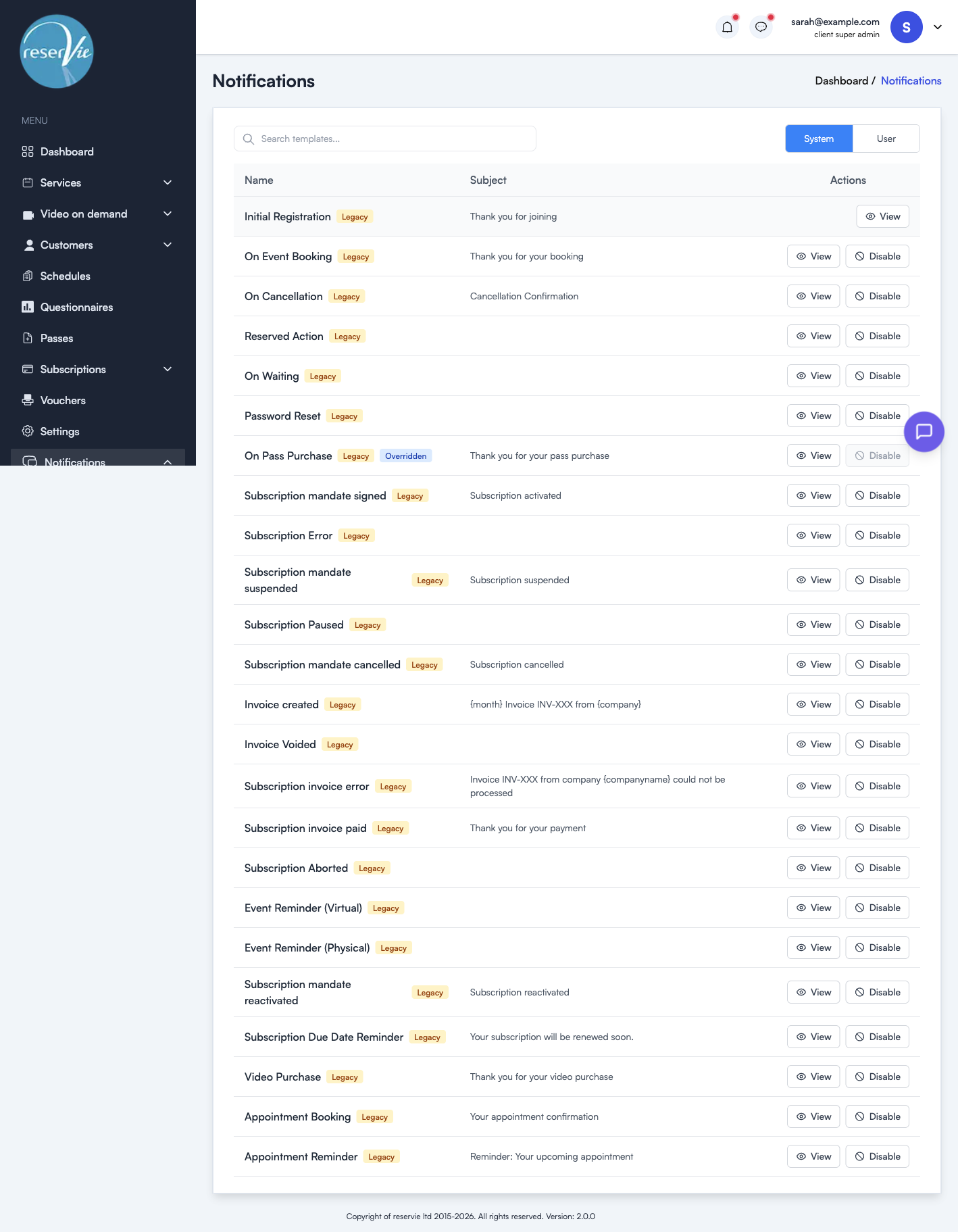
The System tab shows all built-in templates. Each row displays:
| Column | Description |
|---|---|
| Name | The template name and a Legacy badge |
| Subject | The email subject line |
| Actions | View to preview the template, Disable to turn it off |
When a system template has been overridden by a user-defined template, it shows an Overridden badge and the Disable button is greyed out.
Viewing a system template
Click View to see the template’s subject line and email body. System templates use template tags (see below) for dynamic content such as the customer’s name or purchase details.
Disabling a system template
Click Disable to stop a system template from being sent. This is useful if you do not want a particular notification type to fire at all, or if you are managing that communication through other channels.
User templates
Switch to the User tab to see your custom templates. This tab also shows the Create Template button.
The User tab displays:
| Column | Description |
|---|---|
| Trigger | The trigger type this template overrides |
| Name | The template name |
| Subject | The email subject line |
| Actions | View, Edit, or Delete the template |
Creating a user template
- Click Create Template on the User tab
- Fill in the Basic Details:
- Override System Template — Select which trigger type this template will override (e.g. Event Booking, Pass Purchase)
- Template Name — A descriptive name for your reference
- Description — Optional notes about the template
- Fill in the Email Content:
- Subject Line — The subject your customers will see
- Email Body — The message content, using template tags for dynamic data
- Click Save Template
Editing a user template
Click Edit on any user template to modify its name, subject, or body content. Click Save Template when done.
Deleting a user template
Click Delete to remove a user template. Once deleted, the system template will resume as the default for that trigger type.
Template tags
Template tags insert dynamic content into your emails. Use them in both the subject line and email body. For the full reference, see Email Template Placeholders.
| Tag | Output |
|---|---|
{firstname} | Customer’s first name |
{lastname} | Customer’s last name |
{purchase} | Details of what was purchased |
{company} | Your company name |
{companyname} | Your company name (alternative) |
{month} | The current month |
{meetinginvite} | Zoom meeting invite link (virtual events) |
{meetingid} | Zoom meeting ID (virtual events) |
{meetingpasscode} | Zoom meeting passcode (virtual events) |
For example, a booking confirmation email body might look like:
Hello {firstname},

Thank you for your purchase. You have booked the following:

{purchase}

Best Wishes
{company}