
When you would use this
Someone rings up, or catches you on the way out of class, and wants an appointment. This page is about putting that booking in yourself.
Customers booking themselves through your website is a different thing, and it happens without you doing anything.
Before you start
The person needs hours open in the diary, or there will be nothing to book them into. See Setting your availability.
Booking someone in
Go to Services > Appointments and click + Add Appointment.
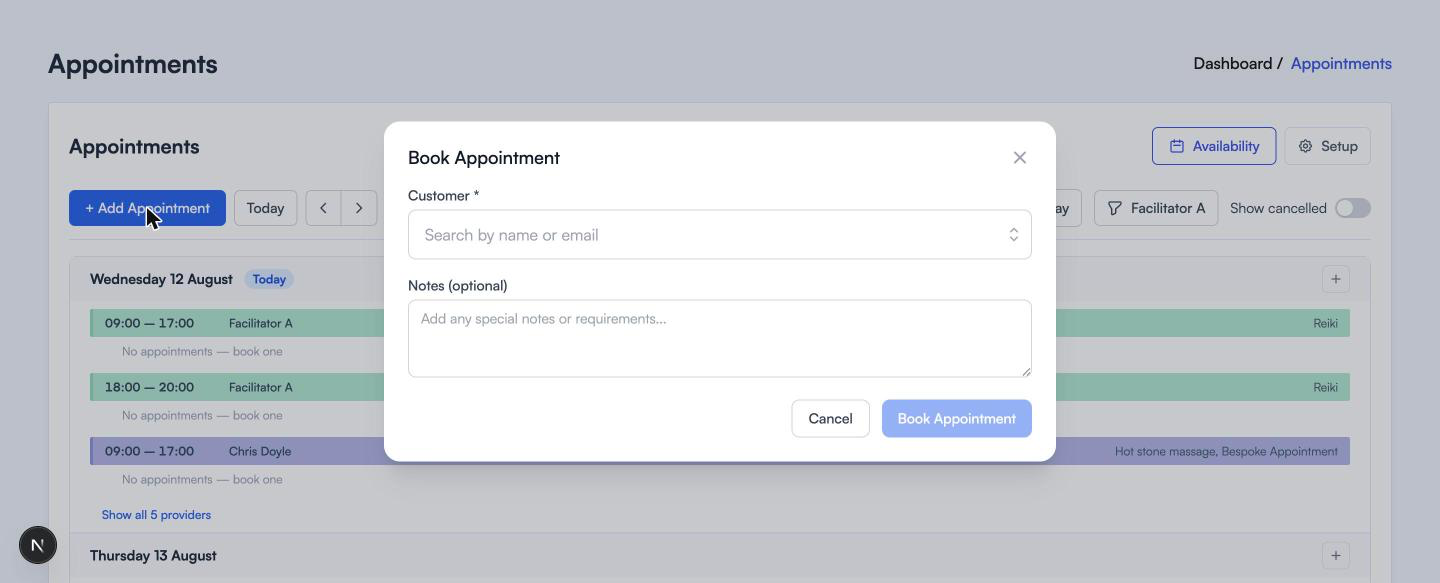
The form starts almost empty and grows as you answer it. Each answer narrows the next question, so you cannot pick a time that is not really free.
Customer. Start typing a name or an email address and pick them from the list.
Service. What they are coming in for.
Date. Only dates with hours open for that service are offered. If the date you want is missing, nobody is open for it yet.
Time. Only times that are genuinely free. Times already booked, or too close to the end of the window to fit the treatment, are not shown.
Duration. The lengths you priced up for that service, for example 30, 60 or 90 minutes.
Facilitator. Only people who offer that service at that time. Often there is just one.
Notes. For you, not for the customer. “Bad shoulder, avoid deep work.”
Taking the payment
Once the facilitator is chosen, the payment options appear.
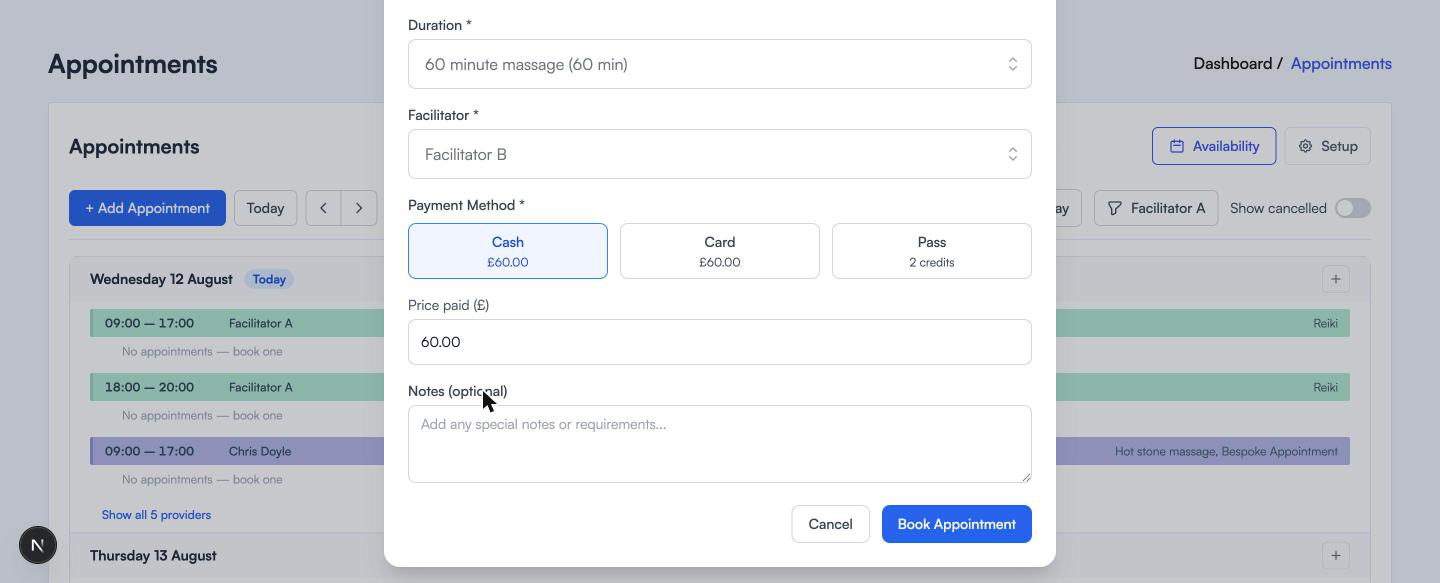
Cash and card both show the price. Price paid underneath is editable, so if you took £50 for a £60 treatment, put £50 in and the records match what actually happened.
Paying with a pass
If the customer has a pass that covers this, the third tile is live and tells you how many credits the booking will take.
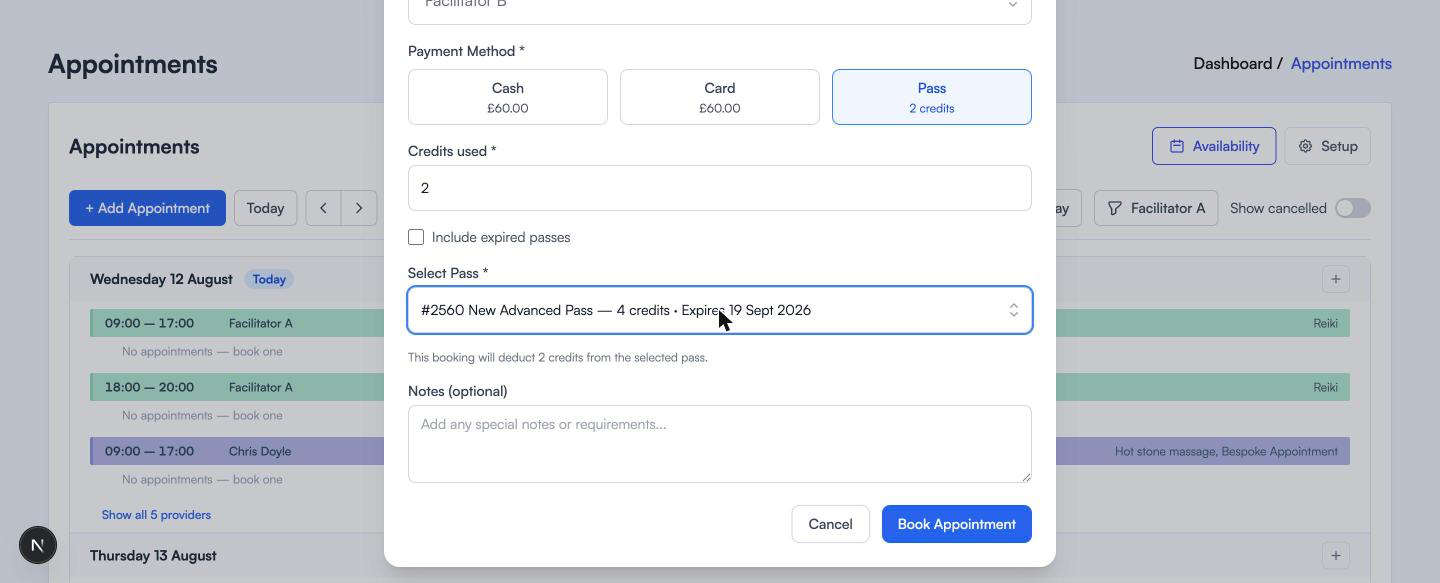
Click Pass and the price box is replaced by the pass details.
Credits used is filled in for you based on the treatment. You can change it if you have agreed something different.
Select Pass lists the customer’s passes, each with its number, name, credits left and expiry date, so you can see at a glance which one to spend. Include expired passes brings expired ones into that list if you are being generous with someone who just missed the deadline.
The line underneath spells out what is about to happen: “This booking will deduct 2 credits from the selected pass.” Then click Book Appointment.
If the Pass tile is greyed out and says “No passes”, this customer has no pass that fits. Take cash or card instead, or sell them a pass first.
Booking straight into a window
You do not have to start from + Add Appointment. In the List view, every open window has a link under it: “No appointments, book one” when it is empty, or “Book another” when someone is already in it. The plus button on a day heading does the same for that day.
They all open the same form with the date and time already filled in, which saves you hunting for the slot you were just looking at.
Finding a booking again
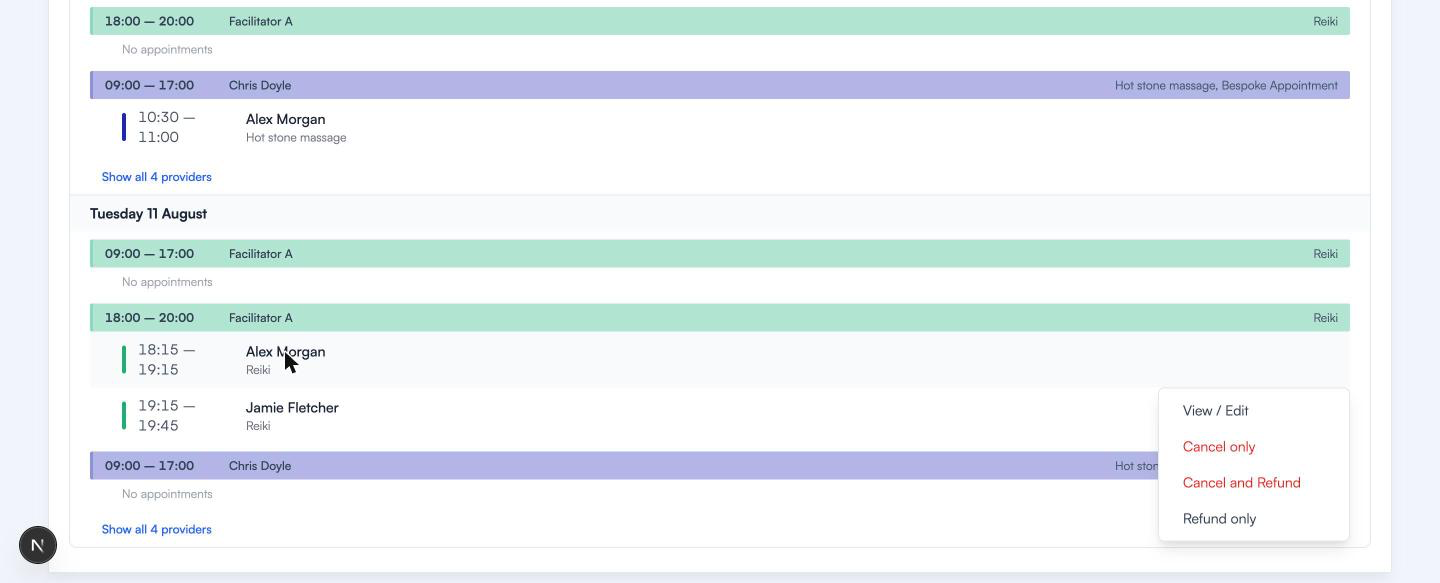
Bookings show up wherever you are in the diary. In List and Day view you see the customer’s name and treatment inside the window they belong to. In Month view you see names on the day.
Click one and you get four choices.
Looking at a booking
View / Edit opens the details.
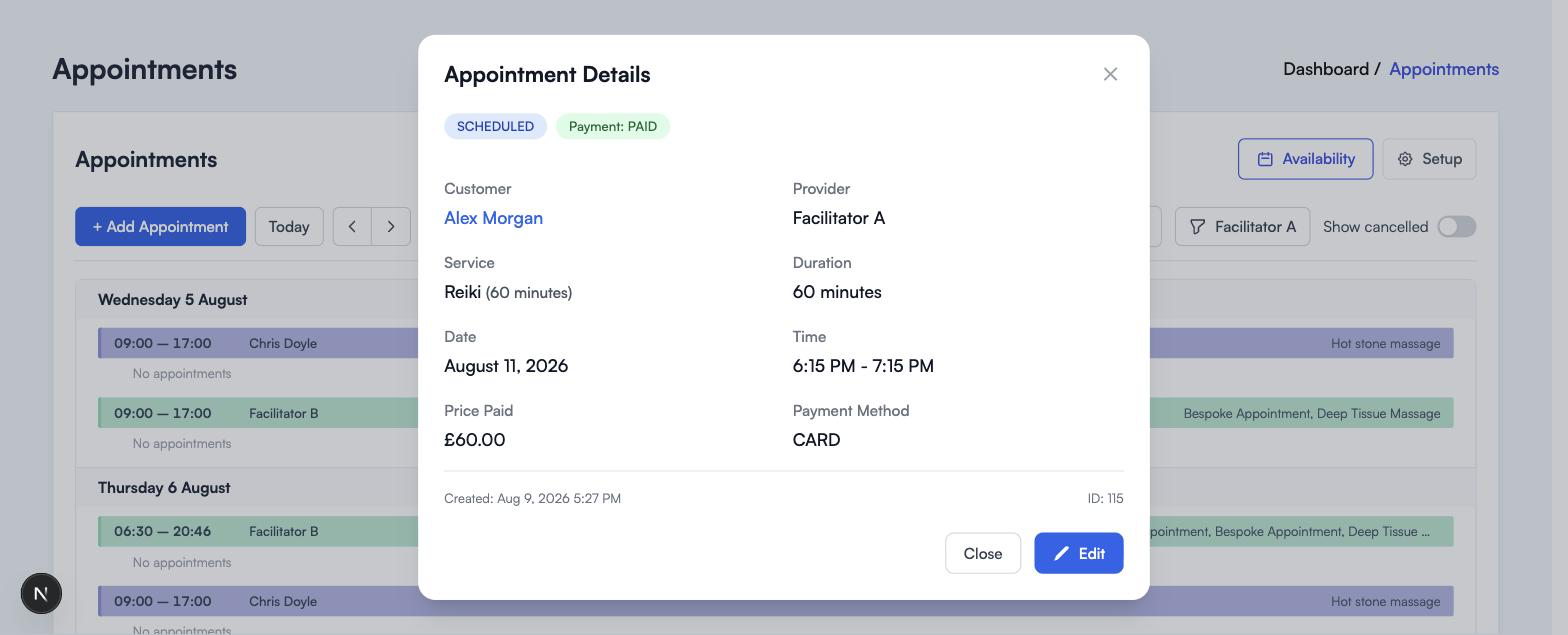
Two badges across the top tell you where things stand: whether the appointment is still scheduled, and whether it has been paid. Underneath is everything about the booking, including what they paid and how. The customer’s name is a link through to their record.
Changing a booking
Click Edit on the details window and you can move the appointment, change the treatment or length, swap the facilitator, or correct the payment. Then Update Appointment.
Sometimes a yellow note appears, along the lines of “Ends 15 min into the buffer before Reiki. Booking anyway will override the buffer.” That is reservie pointing out that the new timing eats into the gap you set aside between treatments. It is a warning, not a block. If you are happy to run tight that day, carry on.
Cancelling and refunding
The other three options split two jobs apart, because they are not always the same job.
Cancel only takes the appointment out of the diary and frees the slot for someone else. If the booking was paid for with a pass, the credits go straight back onto that pass, so nobody loses a session because they moved it.
Refund only returns the money and leaves the appointment in the diary. Useful when you are making something up to a customer but they are still coming.
Cancel and Refund does both, which is the usual one when somebody cannot make it and you are giving their money back.
The two refund options only appear when the appointment was paid for by card, because a card payment is the only one reservie can reverse itself. If it was cash, cancel the appointment and hand the money back the way you took it. If it was a pass, cancelling is the refund: the credits go back.
Cancelled appointments are hidden by default. Turn on Show cancelled above the calendar when you want to see what happened.
If something looks wrong
No dates are offered. Nobody has open hours for that service. Open some up first.
The time they want is missing. Either it is already booked, or the treatment would not finish before the window closes.
Their usual facilitator is not in the list. That person’s schedule does not include this service at this time. Check which services are ticked on their availability.
The Pass tile says “No passes”. They have no pass that covers this service, or it has expired. Tick “Include expired passes” to check.
You get a buffer warning. The appointment runs into the gap after another treatment. Fine to override if you are happy to.
There is no refund option on the menu. It was not paid for by card. Cash goes back by hand, and a pass gets its credits back when you cancel.
Still stuck? Get in touch and we will look at it with you.
Where to go next
- Setting your availability for opening up bookable hours
- The four calendar views for finding your way around the diary
- Managing services for prices, lengths and buffer times