
What availability means here
Availability is you telling reservie “this person can be booked at these times”. Until you do that, the calendar has nothing to offer, and a customer who tries to book an appointment is told there is nothing free.
You do not have to plan months ahead. Open up next week, see how it goes, and add more when you are ready.
Everything on this page happens on one screen: Services > Appointments.
Before you start
Two things need to exist first:
- The people you are booking, set up under Facilitators
- The things they do, set up under Services
If a name or a treatment is missing when you get to the steps below, that is why.
Whose diary am I editing?
The calendar shows one person’s availability at a time. The button near the view buttons tells you who that is.
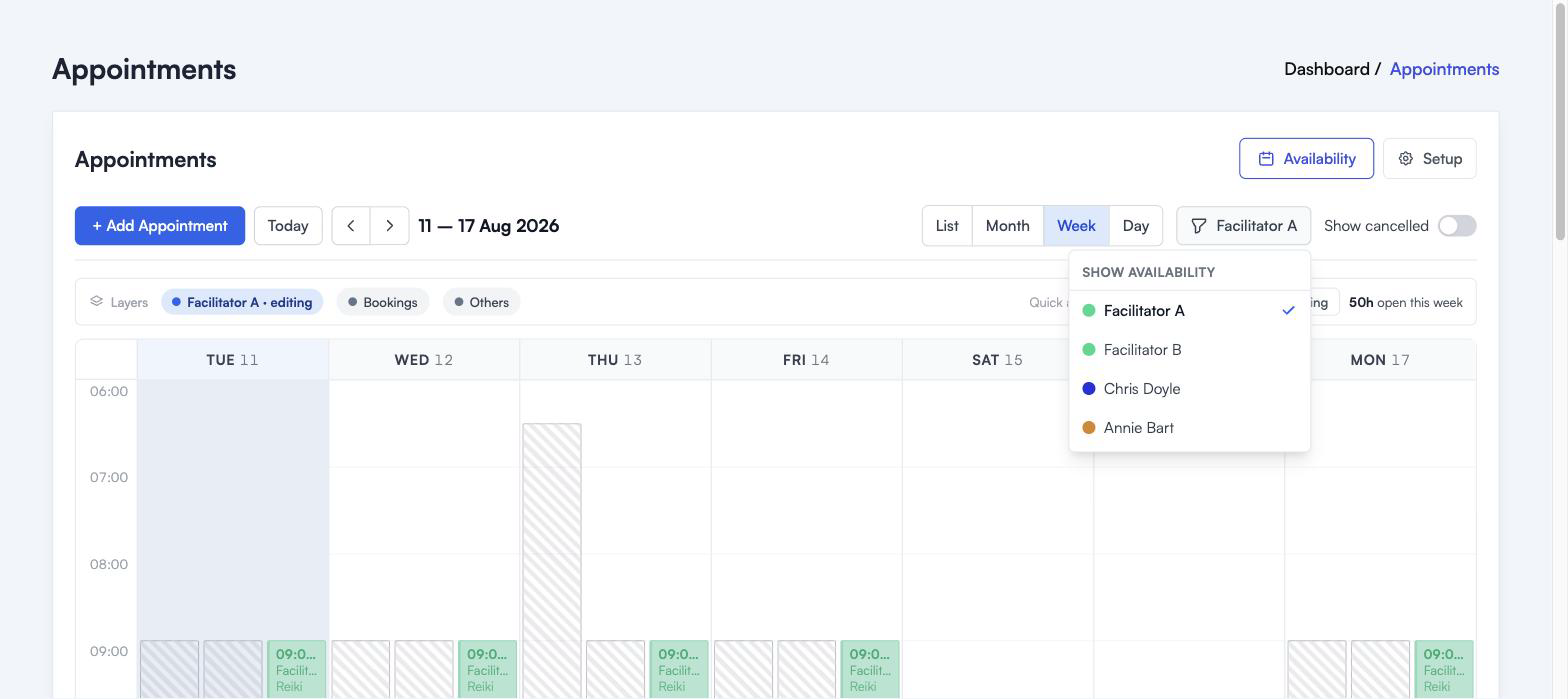
Click it and pick a name. That person is now the one you are working on, and the bar underneath the toolbar says so: “Facilitator A, editing”.
Everything you add next belongs to that person. If you open up Tuesday morning and the wrong name is showing, you have opened up Tuesday morning for the wrong person, so it is worth a glance before you start.
Reading the calendar
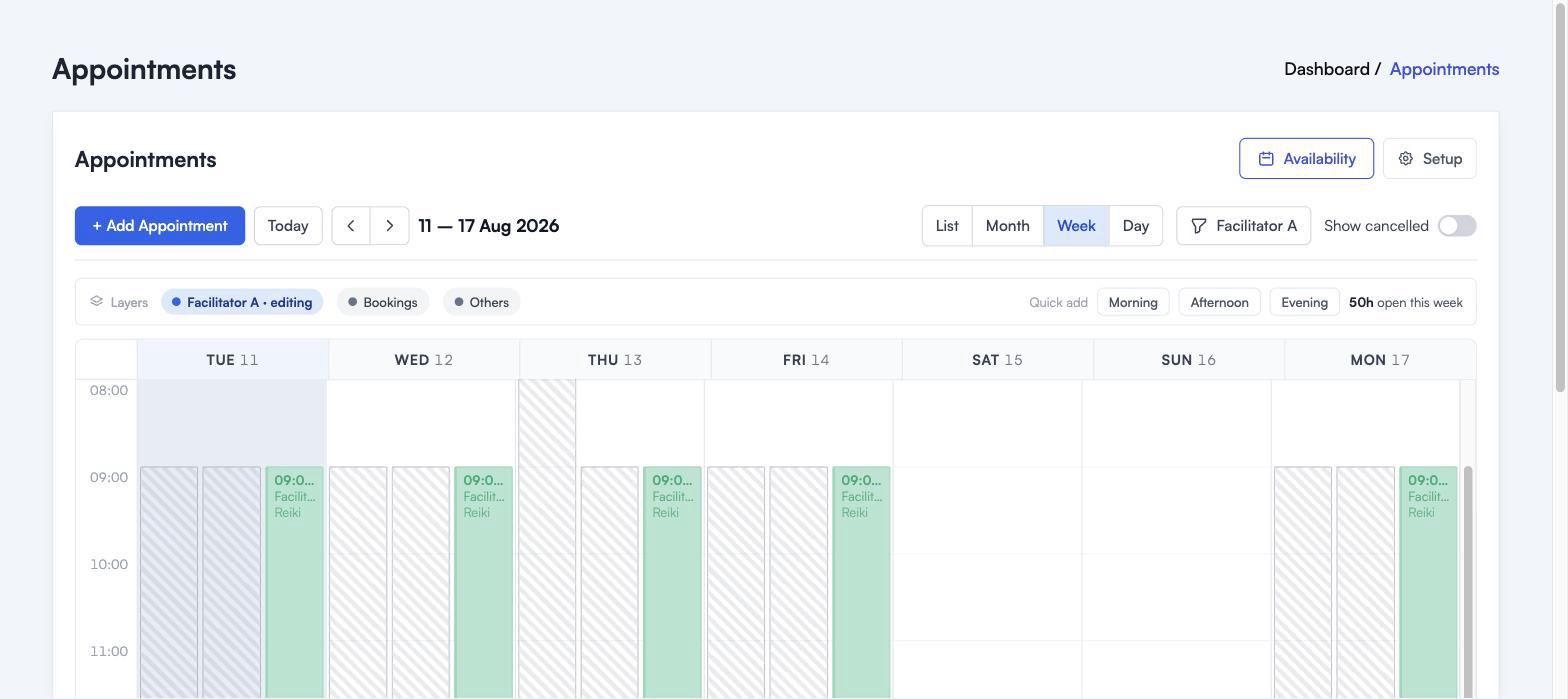
The bar above the calendar is the key to what you are looking at.
Solid colour is the person you are editing. Those are the hours you have opened up for them.
Striped blocks are the Others layer. That is a rough outline of when your other facilitators are already busy or already open. It is there so you do not accidentally put two people on the same job at the same time. You can switch it off by clicking Others, and switch bookings on or off the same way.
On the right, “50h open this week” is a running total of the hours you have opened up for this person in the week you are looking at. It is a quick sanity check. If you meant to open up two mornings and it says 50 hours, something went wider than you intended.
Three ways to open up time
They all do the same thing in the end. Use whichever suits the day you are having.
Drag on the calendar
Best for one-offs. Someone asks for a Sunday morning, you drag Sunday morning.
In Week or Day view, press down at the time you want to start, drag to the time you want to finish, and let go. Drag down a single column for one day, or sideways across columns for several days at once.
A small panel opens with the times already filled in.
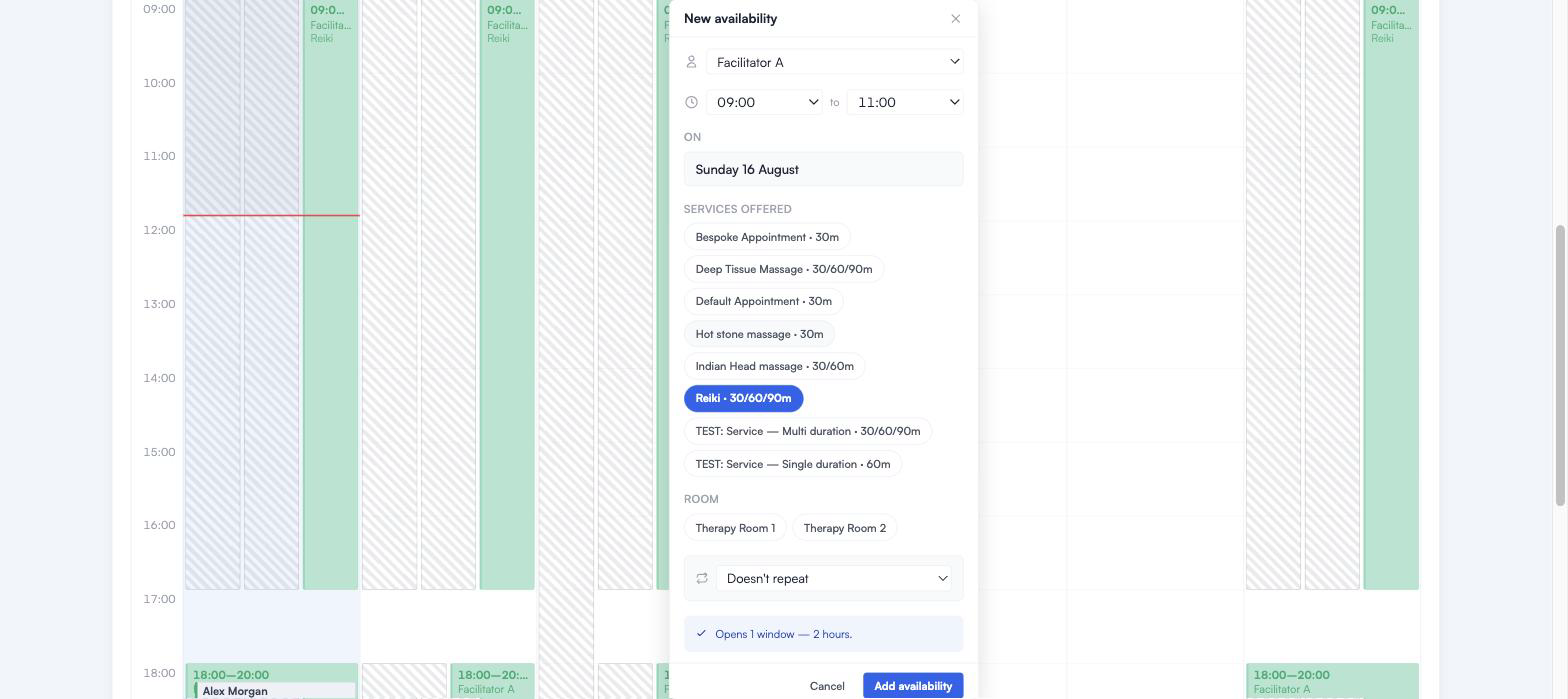
Pick at least one service. That is the only thing reservie will not guess for you, because it decides what a customer is allowed to book in that window. You can also pick a room, and set the window to repeat weekly if this is going to be a regular thing.
The green line near the bottom tells you what you are about to create before you commit to it. Read that line. If it says something you did not expect, change the times rather than saving and unpicking it later.
Click Add availability and the block appears on the calendar.
Quick add: Morning, Afternoon, Evening
Best for a normal week. One click roughs out the whole thing and you tidy up after.
Click Morning, Afternoon or Evening in the bar above the calendar.
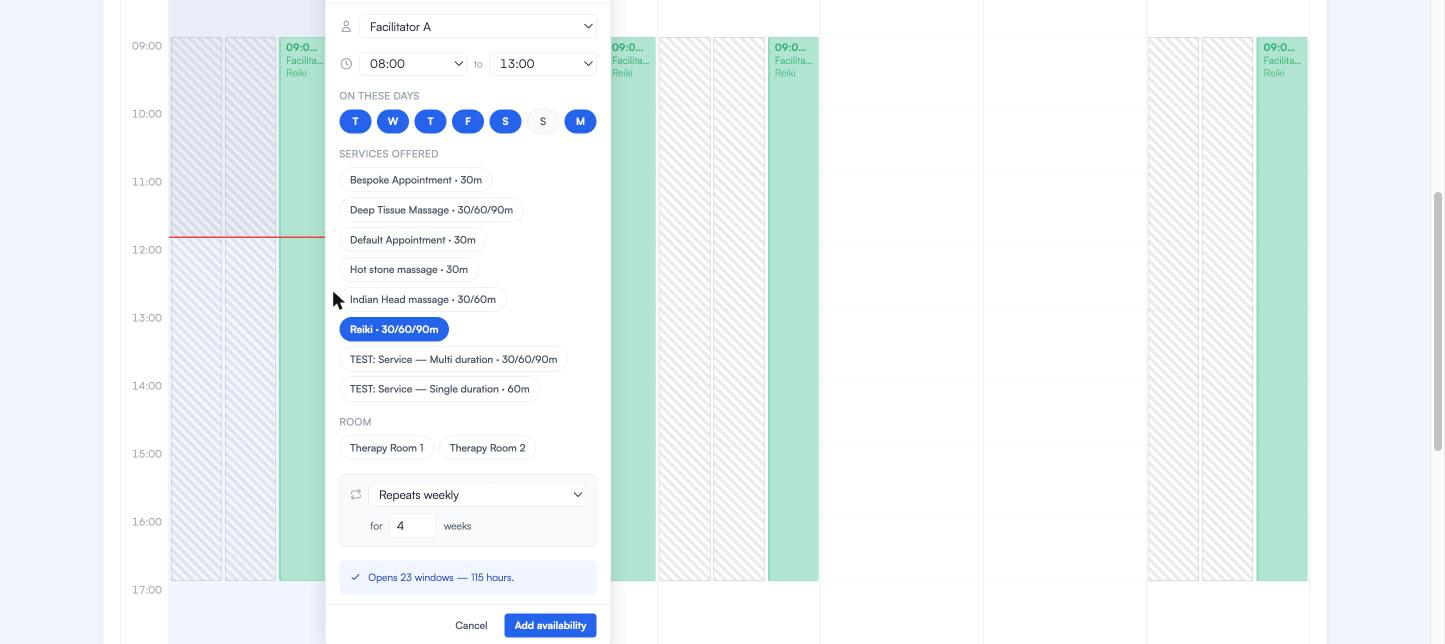
The same panel opens, but this time it covers every day of the week you are viewing, with a sensible block of hours already in it. Switch days off by clicking them. Change the times if 8am is optimistic. Choose your services.
Quick add can cover a lot of ground in one go, so the green line matters even more here. “Opens 23 windows, 115 hours” is a lot of diary. If that is not what you meant, turn some days off before you save.
The Add Schedule form
Best when you know exactly what you want: a run of dates, certain days, the same hours each time.
Click Availability at the top right, then Add Schedule.
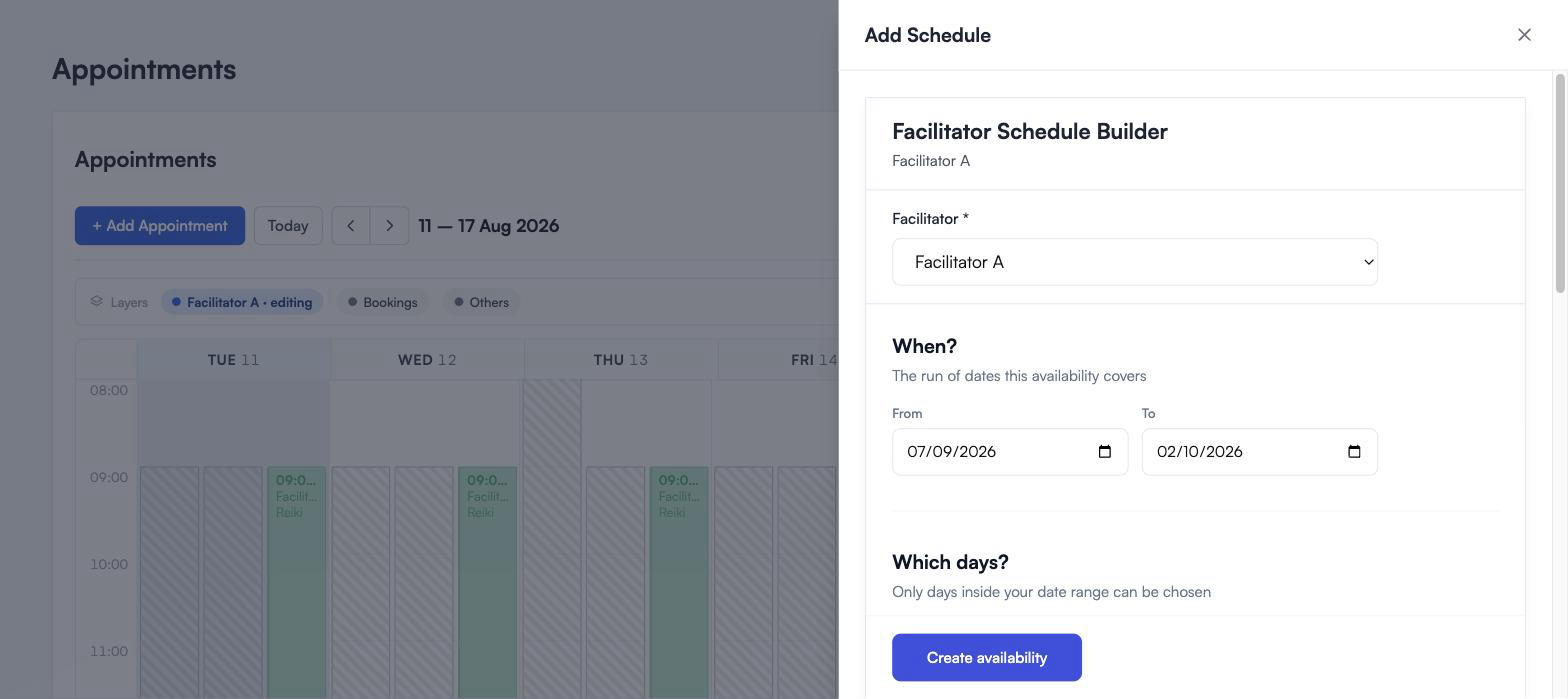
The form asks you plain questions, in order.
Who is it for, then when. The From and To dates are the run of dates this availability covers. Nothing outside them is affected.
Then which days, and what time.
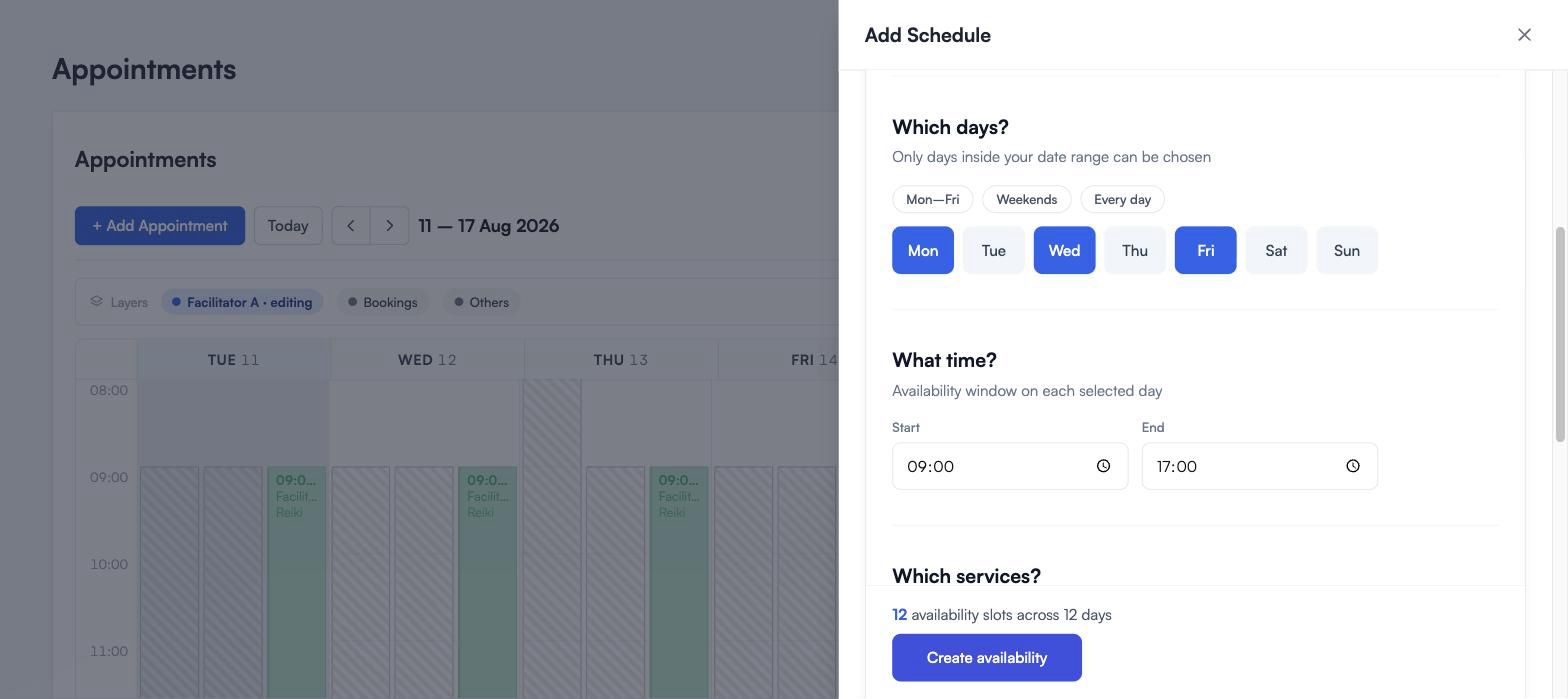
The day buttons stay greyed out until you have picked your dates, because reservie will not offer you a Saturday if your dates do not include one. Mon to Fri, Weekends and Every day are shortcuts. You can still click individual days afterwards.
The times are the working window on each of those days, not one long block. 09:00 to 17:00 on Monday, Wednesday and Friday gives you three separate working days.
Last, which services, and a room if you use them.
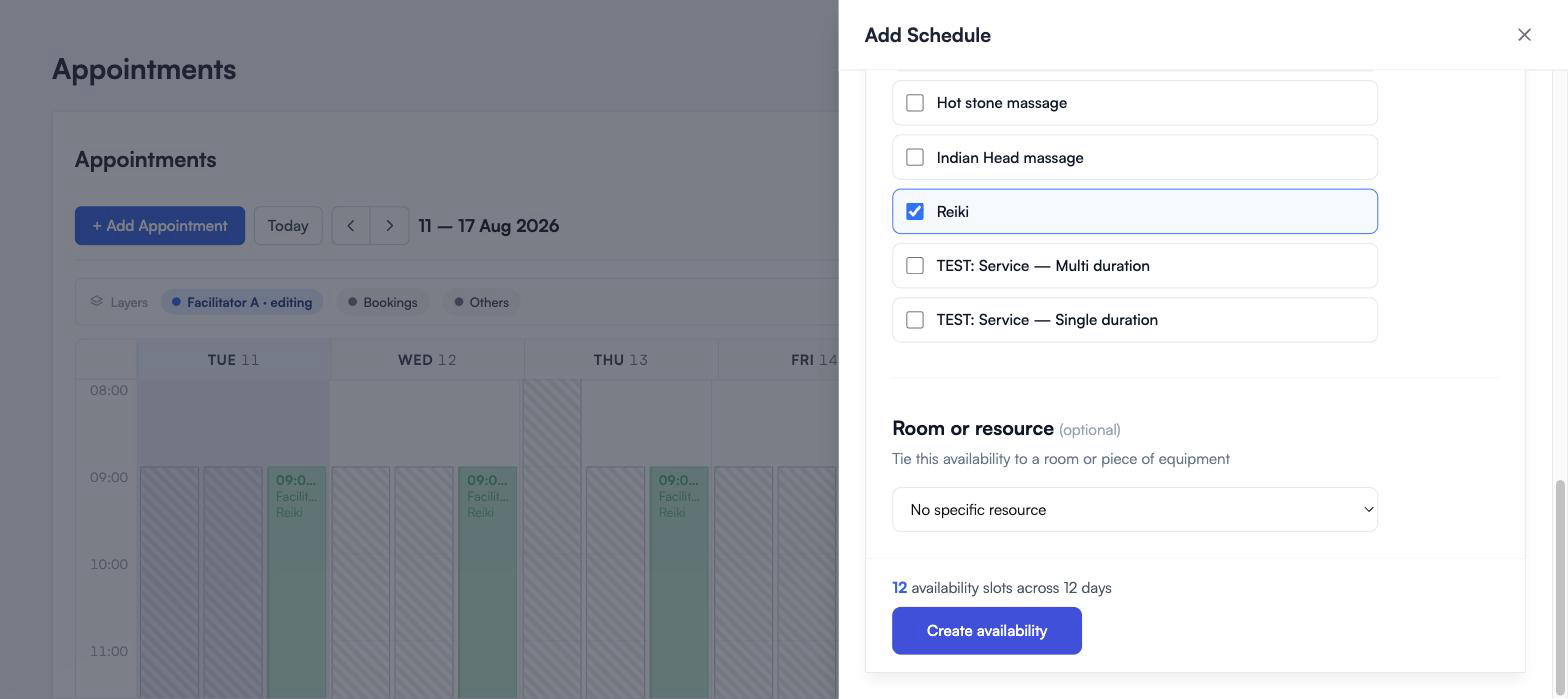
Tick only what this person actually does in these hours. A facilitator might offer massage all week but Reiki only on Fridays, and that is two separate schedules rather than one.
The room is optional. If you pick one, reservie will not let anything else be booked into that room at the same time.
Above the button, the summary updates as you go: “12 availability slots across 12 days”. When it matches what you had in your head, click Create availability.
Changing or removing availability
Click Availability at the top right to see everything you have set up.
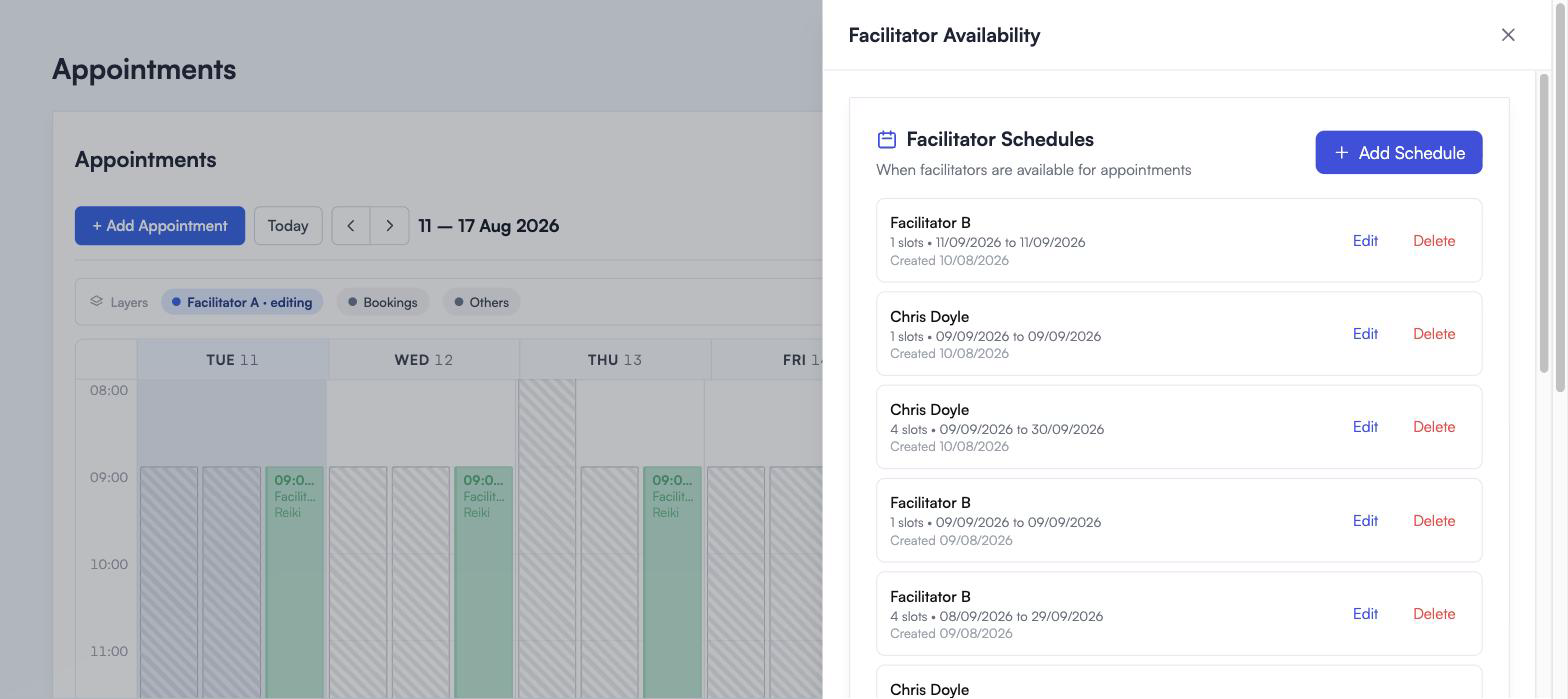
Each line is one schedule, with who it is for, how many slots it created, and the dates it covers. Anything you drag onto the calendar shows up here too.
Edit opens that schedule and lists the individual slots inside it. From there you can change one day’s times or services without touching the rest, or remove a single slot and leave the others alone.
Delete archives the slot. Appointments already booked in it are not cancelled and your customers are not contacted. The time simply stops being offered from now on. reservie asks you to confirm before anything goes.
What your customers see
Nothing you do here goes out to anyone. Opening up Thursday afternoon does not send an email or announce anything.
The only effect is on the booking page. When someone picks a service, reservie looks at the hours you have opened up for facilitators who do that service, takes out anything already booked, takes out any time where the room is in use, and shows what is left. Times too short for the treatment they chose are not offered at all.
If something looks wrong
A customer says there is nothing available. Check you are looking at the right person on the calendar, then check the service is ticked on that schedule. An open window with no services attached is invisible to customers.
The hours went on the wrong person. Availability belongs to whoever was showing in the picker when you saved. Open the Availability panel, find the schedule under the wrong name, delete it, switch to the right person and add it again.
Days are greyed out in the form. Your date range does not include that day of the week yet. Widen the From and To dates.
The block covers more time than you meant. Dragging snaps to the nearest half hour. Rather than redrawing it, open the Availability panel, click Edit, and type the exact times.
A slot will not delete. Deleting archives the slot and leaves existing bookings in place, so a past window with bookings in it can stay visible on old dates. That is normal, and nothing new can be booked into it.
Still stuck? Get in touch and we will look at it with you.
Where to go next
- Booking appointments for taking a booking yourself
- Managing services for what you offer and how long it takes
- Managing physical resources for rooms and equipment