
Overview
Connecting Zoom to reservie allows the system to automatically create Zoom meetings for your virtual events. Once connected, meeting links, IDs, and passcodes are generated and shared with customers through booking confirmations and reminders.
Connecting a new Zoom account
- Navigate to Integrations in the sidebar menu
- In the Virtual Hosting section, find the Zoom card that says Click to connect
- Click the card — a new browser tab will open with the Zoom sign-in page
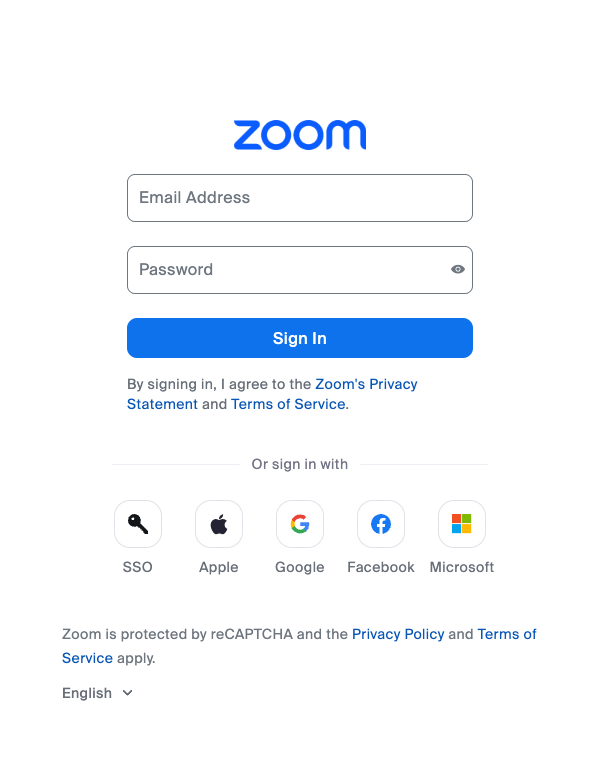
- Sign in to your Zoom account using your email and password, or use one of the alternative sign-in methods (SSO, Apple, Google, Facebook, or Microsoft)
- Zoom will ask you to authorise reservie to access your account — click Allow
- You will be redirected back to the reservie Integration Hub
- The Zoom card will now show Connected along with your Zoom account details and the connection date
Viewing an existing connection
Once connected, the Zoom card displays:
- Your Zoom account name
- Your Zoom account email
- The date the connection was established
- A Connected badge
Re-authorising a connection
If your Zoom connection expires or you need to refresh it:
- Click the action menu (three dots) on the connected Zoom card
- Select Re-authorize
- Follow the Zoom sign-in and authorisation steps as described above
Disconnecting Zoom
To remove the Zoom connection from your reservie account:
- Click the action menu (three dots) on the connected Zoom card
- Select Disconnect
Once disconnected, reservie will no longer be able to create Zoom meetings for your events. Any existing meeting links already sent to customers will remain active in Zoom until they expire or are manually deleted.
Multiple Zoom connections
You can connect more than one Zoom account. Each available slot appears as a separate card in the Virtual Hosting section. This is useful if you have multiple instructors or facilitators who each use their own Zoom account.
Troubleshooting
| Issue | Solution |
|---|---|
| Connection fails | Ensure you are signing in with the correct Zoom account and that pop-ups are not blocked in your browser |
| Connection expired | Use the Re-authorize option from the action menu to refresh the connection |
| Zoom meetings not being created | Check that the Zoom connection is still showing as Connected in the Integration Hub. If not, re-authorize or reconnect |