
What this page is for
When a customer has booked onto a virtual event (a class delivered over Zoom or a similar platform), this page is where they go to find the join link. Bringing them to one consolidated page avoids the “I can’t find the email” support problem.
The page only lists upcoming virtual classes the customer is booked on — not the full event schedule.
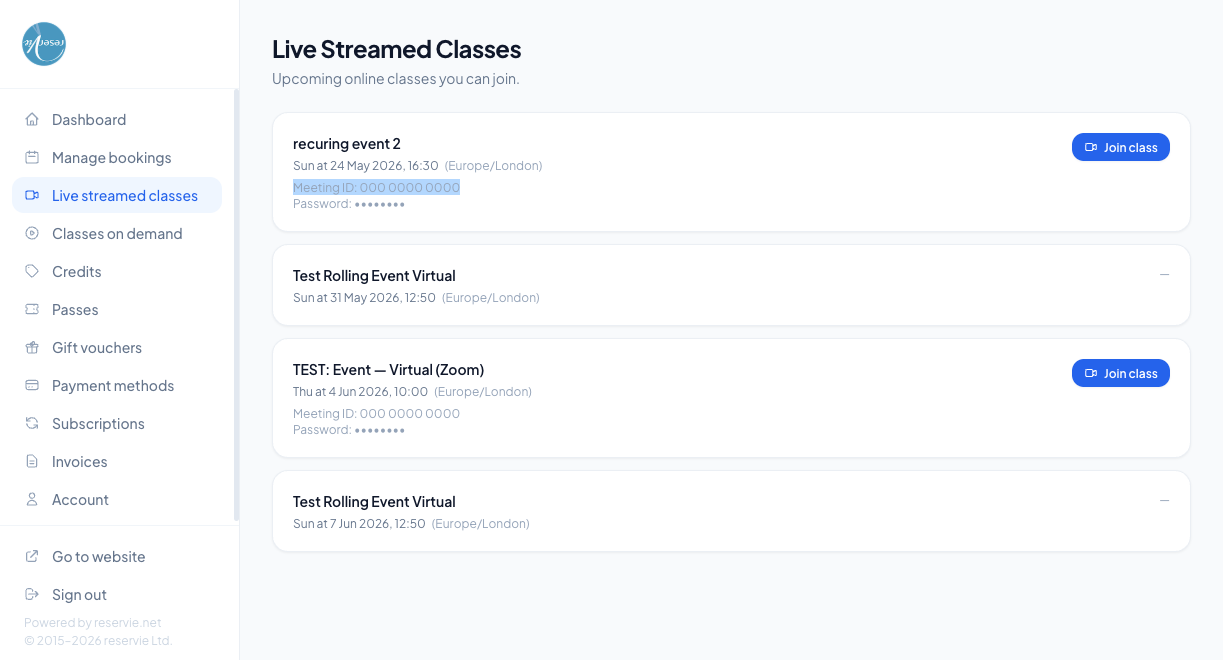
What each card shows
| Element | What it is |
|---|---|
| Event title | The name of the class as set in admin |
| Date and time | Day, date, start time, and the timezone the class is being delivered in (e.g. Europe/London) |
| Meeting ID | The platform’s meeting ID (e.g. Zoom meeting ID) |
| Password | The meeting password — needed if the customer joins manually rather than via the link |
| Join class button | Direct link to the meeting URL — usually one-click |
For some events you may not have set a join link yet — those cards show ”—” instead of the Meeting ID, Password, and Join button.
How the join link gets populated
The customer doesn’t enter any of this — you set it up on the admin side when you create or edit the event. See Creating and Editing Events for the Event type → Virtual step.
If you change the join link in admin after the customer has booked, the change is reflected here immediately — they don’t need to re-book to pick up the new URL.
When the join button is active
Most studios make the link available from the moment the customer books. If you want to limit when customers can click through (e.g. “only enabled 15 minutes before the class”), that’s controlled at the event level in admin.
Common scenarios
”The Join button isn’t working.”
Three usual causes:
- Pop-up blocker — the join link opens in a new tab; ask the customer to allow pop-ups for
<your-subdomain>.reservie.net. - No Zoom (or equivalent) app installed — the customer can usually choose “Join from browser” when the app isn’t installed.
- Wrong meeting URL configured in admin — verify in admin Events → (event) → Configure.
”The Meeting ID and Password aren’t showing.”
The event probably hasn’t had a join link added yet. Go to admin and fill in the Meeting URL / ID / Password fields for that event. Once saved, the customer’s page updates immediately.
”The class is in my dashboard but not here.”
Two possibilities — either the event isn’t marked as virtual (Event type = In Person in admin), or it’s already past. The Live Streamed Classes page is upcoming-only; past virtual classes appear in Managing Bookings → History like any other booking.
Where to go next
- Managing Bookings
- Classes on Demand — for pre-recorded video, not live classes