
What this page is for
The Manage bookings page is where a customer goes to see everything they’ve booked — past, present and future — and to cancel anything they no longer want to attend. It’s the single most-used page in the customer portal after the dashboard.
Reach it from the sidebar (Manage bookings) or from the dashboard’s View all → link.
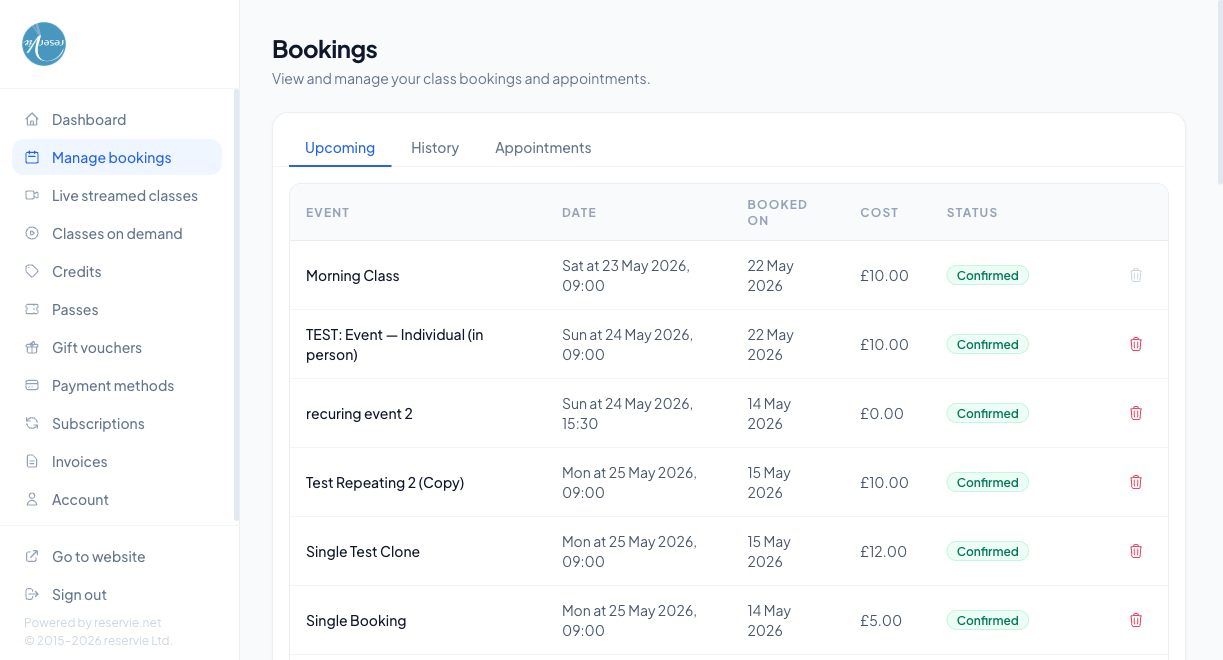
The three tabs
Across the top of the page are three tabs:
| Tab | What’s in it |
|---|---|
| Upcoming | Bookings the customer has on future dates (the default view) |
| History | Bookings that have already happened — attended, no-show, or in the past |
| Appointments | One-to-one appointments (separate from regular events) |
The Upcoming table
Each row is one booking, with columns for:
| Column | Notes |
|---|---|
| Event | The event name. Block bookings show a small Block tag next to the name |
| Date | Day, date, and start time in the customer’s local time |
| Booked on | The date the customer placed the booking — useful for refund eligibility |
| Cost | What they paid. Cash/card payments show as £X.XX; credit-funded bookings show as X.XX CR |
| Status | Usually Confirmed. Other states: Pending, Waiting list, Cancelled |
| Cancel Booking button | Enabled if the booking is within the cancellation window; greyed out otherwise |
Cancelling a booking
Clicking Cancel Booking opens a confirmation dialog. The behaviour depends on the studio’s cancellation policy:
- Full refund window — the original payment method is refunded
- Credit-only window — the customer is issued a credit they can use against future bookings
- No-refund window — the booking is cancelled but no refund is issued
The cancel button is disabled for bookings that are inside the no-cancellation window — most commonly within a few hours of the event starting, or for events marked non-cancellable.
Block bookings
A “Block” booking covers multiple dates as a single package — e.g. “8-week course”. Cancelling one of these uses Cancel Block Booking and follows the block’s own cancellation rules, which may differ from single-class rules.
The History tab
Past bookings, oldest visible at the bottom. There’s no action button here — it’s a read-only record. Use it if a customer asks “what classes have I been to?” or “did I attend on the 14th?”
The Appointments tab
If the studio uses Appointments for one-to-one sessions (e.g. consultations, private lessons), they appear here. The columns and cancel behaviour mirror Upcoming but the entries are appointments rather than events.
Common scenarios
”I want to cancel but the button is greyed out.”
The cancellation window has passed. Direct the customer to contact you (you can still cancel from the admin side, and choose to refund as a goodwill gesture if appropriate).
”I cancelled but I haven’t been refunded.”
Refunds typically appear on the customer’s statement within 5–10 working days, depending on their card issuer. If it’s been longer, check the booking in admin — it should be marked Cancelled with a refund record attached. If not, it may have been cancelled into credit rather than refunded.
”Can a customer move a booking instead of cancelling it?”
There’s no in-portal “move” — they need to cancel the existing booking and re-book the new date. If the cancellation window has closed, you’ll need to handle it from admin.