
What the dashboard is
The dashboard is the home page of the customer portal — the first thing a customer sees after signing in. It’s a summary view: the things they’re booked on next, the passes they can still use, the most recent videos in their library, and a short history of what they’ve attended.
Everything on the dashboard is also reachable from the sidebar, but the dashboard puts it all on one screen so customers can see at a glance whether they need to do anything.
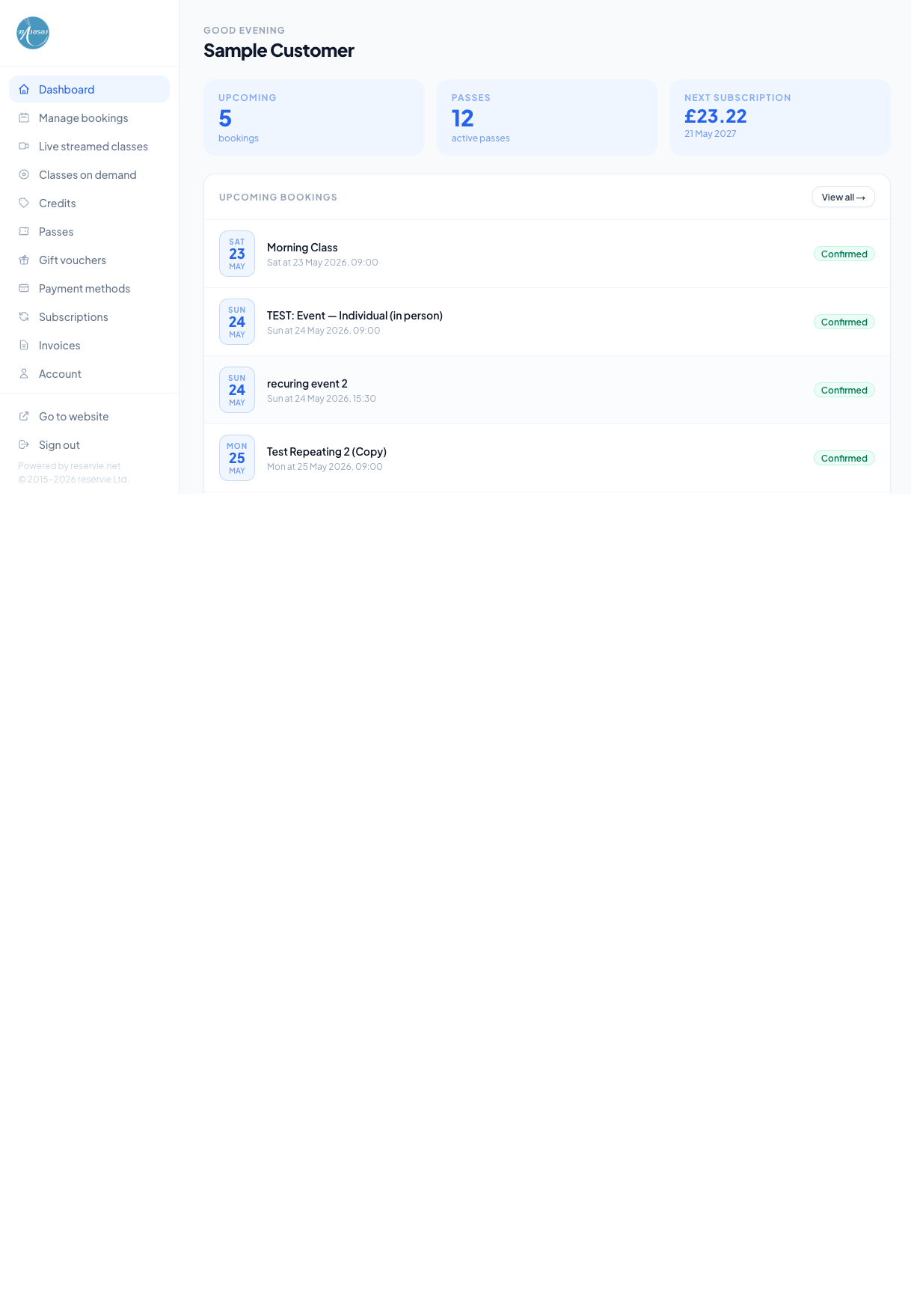
The header
At the top is a time-of-day greeting (Good morning / afternoon / evening) followed by the customer’s name. The name is whatever the customer entered when they registered, editable any time from the Account page.
The three summary cards
Just below the greeting are three at-a-glance metric cards:
| Card | What it shows |
|---|---|
| Upcoming | Number of bookings the customer has on their schedule |
| Passes | Number of active (unexpired, with credits remaining) passes |
| Next subscription | The next subscription payment date and amount, if they have an active subscription |
If the customer has no upcoming bookings, no active passes, or no subscription, the relevant card shows “0” or is omitted. It’s intentionally simple — a “glance at it on a Monday morning” view.
Upcoming bookings
The next section is a list of the customer’s next handful of bookings — date, time, event name, and confirmation status. Each row links through to the booking detail. A View all → link takes them to the full Managing Bookings page.
Upcoming payments
If the customer has subscriptions, this card lists the next few automatic payments — what they’re for, the date, and the amount. A View all → link takes them to Subscriptions.
Active passes
A condensed view of the customer’s passes — name, credits remaining (e.g. “5 of 10”), and expiry date. The full list is on the Passes page.
Recent videos
Thumbnails of recently-added or recently-watched videos from your video library. Clicking a thumbnail starts playback. A View all → link goes to Classes on Demand.
This card only appears if your studio has Video on Demand enabled and the customer has access to at least one library.
Event history
A scrollable table at the bottom of the page showing past events the customer attended (or was booked into). Columns: event name, date, booked-on date.
Common scenarios
”A customer says they have no upcoming bookings but I can see one in admin.”
The dashboard pulls live data — if it’s not showing up, the booking either isn’t confirmed (cancelled, refunded, or stuck in pending payment) or is on a date so far in the future that it falls outside the dashboard’s window. Send them to Managing Bookings for the full list.
”Where can I see their attendance history?”
The Event history table on the dashboard is the customer-side view. From admin, Customer Manager → (customer) → Bookings is the equivalent.