
When to send a customer here
Any time a customer:
- Can’t remember the password they set
- Has never set a password (e.g. their account was created by you, or it predates current password rules)
- Was locked out by too many failed login attempts
The flow is the same in all three cases — they enter their email, receive a code, and pick a new password.
Where it lives
https://<your-subdomain>.reservie.net/reset-password
There’s also a Forgotten password? link on the login page that takes them straight here.
What the page looks like
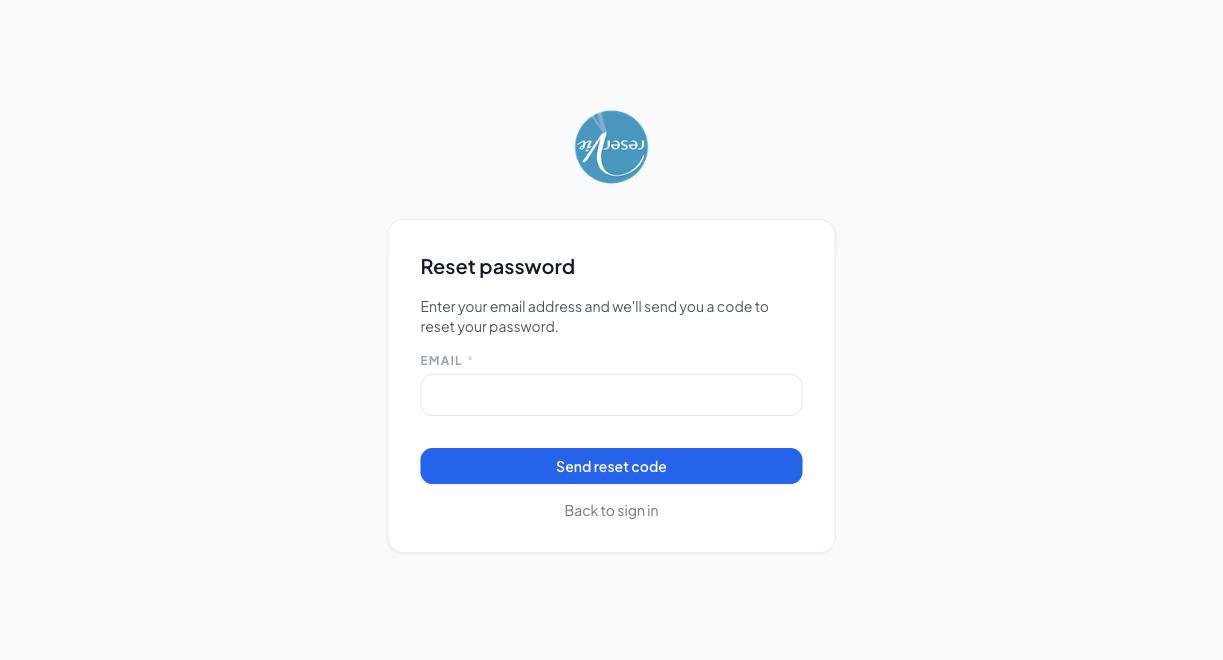
| Element | What it does |
|---|---|
| Email (required) | The email address on the customer’s account |
| Send reset code button | Disabled until the email field has a valid-looking address. When clicked, sends a code to that address |
| Back to sign in | Link back to the login page |
The flow, step by step
- Enter email — the customer types the email address on their account and clicks Send reset code.
- Check inbox — they receive an email with a 6-digit code from your studio’s “from” address (the one set in admin Settings → Configuration → Your company email).
- Enter the code — the next screen asks for the code.
- Pick a new password — once the code is verified, they enter their new password twice.
- Sign in — they’re returned to the login page and can sign in with the new password.
Things to know
The page always says “we’ve sent a code”
For security reasons, the page doesn’t tell the customer whether the email address is registered or not — otherwise it would be a way for someone to find out who has an account on your studio’s portal. If they don’t receive an email, the most common reasons are:
- They entered a different email than the one on the account
- The email landed in spam / promotions
- The account was created with a different address (e.g. work vs personal)
Resets expire
Reset codes expire after a short time (currently 15 minutes). If the customer takes too long, they’ll need to start the flow again from the top.
A reset doesn’t sign them out elsewhere
If they’re already signed in on another device, that session continues until it expires naturally. There’s no global “sign out everywhere” — but you can ask the customer to sign out manually on any device they’re worried about.
Admin-initiated reset
If a customer is having trouble doing this themselves, you can trigger a reset from admin Customer Manager → (customer) → Send password reset. It sends the same email the customer would have received.
Where to go next
- Logging In
- Account — where the customer can change their password without going through reset