
When customers need to register
Customers create an account whenever they want to:
- Make their first booking
- Buy a pass, gift voucher, or subscription
- Redeem a voucher they’ve been given
- Watch a video they’ve purchased on demand
In most cases they’re prompted to register at the right moment by the booking checkout — they don’t need to register first to browse.
If they prefer to register up-front, the page lives at:
https://<your-subdomain>.reservie.net/register
What the page looks like
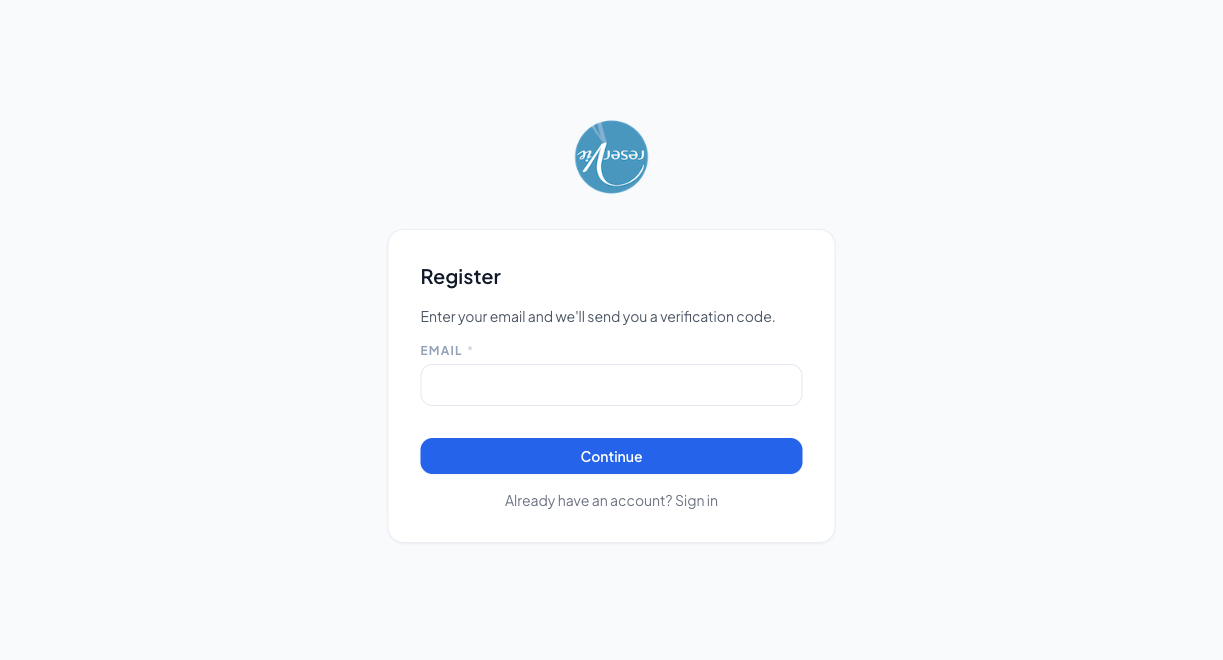
The first step is intentionally short — just an email address:
| Element | What it does |
|---|---|
| Email (required) | The address the account will be registered under — also where their verification code will be sent |
| Continue button | Disabled until the email field has a valid-looking address |
| Already have an account? | Link to the Logging In page |
The flow, step by step
- Enter email — customer types the email they want to use and clicks Continue.
- Verification code — Reservie sends a 6-digit code to that email. The next screen asks them to enter it. This proves the email is theirs (and stops people registering accounts under other people’s addresses).
- Choose a password — once the code is verified, they set a password.
- Fill in their details — first name, last name, mobile number (optional, depending on your settings). This is the information that appears against bookings on your admin side.
- Done — they’re signed in and dropped onto the dashboard. If they were mid-checkout they’re returned to the booking flow.
Things to know
Email is unique
Each email address can have one customer account on your studio’s portal. If someone tries to register with an email that’s already on file, they’ll be told to sign in instead — and offered the Forgotten password? link in case they don’t remember the password.
The verification email
The verification code email is short and template-driven — it comes from your studio’s “from” address (set in admin Settings → Configuration → Your company email). If the customer reports they didn’t receive it:
- Ask them to check spam / promotions
- Confirm they entered the email correctly (typos are the #1 cause)
- After 60 seconds they can request a new code from the verification screen
”Why does this customer have two accounts?”
If the same person registers with two different email addresses they’ll end up with two separate customer records. Use admin Customer Manager → Merge to combine them — see Customer Manager.
Account creation by an admin
You can also create a customer account on someone’s behalf from admin Customer Manager → Add Customer. The customer is then sent an email asking them to set their own password. This is useful for migrating people from an old system or registering walk-ins.
Where to go next
- Logging In
- Resetting Your Password — for customers who forget the password they just set
- Account — what they can change once they’re in