
What an event is
An event is anything customers can book and attend — a class, workshop, course, retreat, or one-off session. In reservie, every bookable session you run is created as an event.
An event can be:
- One date or many. A workshop on a single Saturday, or a 12-week course.
- Recurring or manual. Generate weekly/monthly dates automatically, or add each one yourself.
- In person or virtual. Held at a physical location, or online via Zoom.
- Free or paid. With one or more pricing tiers (and optional pass credits).
Events are managed from Services → Events in the sidebar.
Event types
When you create an event, you choose how customers will attend:
| Type | Use it for |
|---|---|
| In Person | Face-to-face sessions at a physical location. No meeting link is sent to customers. |
| Virtual | Online sessions via Zoom video call. Meeting links are generated and sent to customers automatically when Zoom is connected. |
For Virtual events, connect Zoom from Integrations before creating the event so meeting links can be issued. See Connecting Zoom.
The Events page
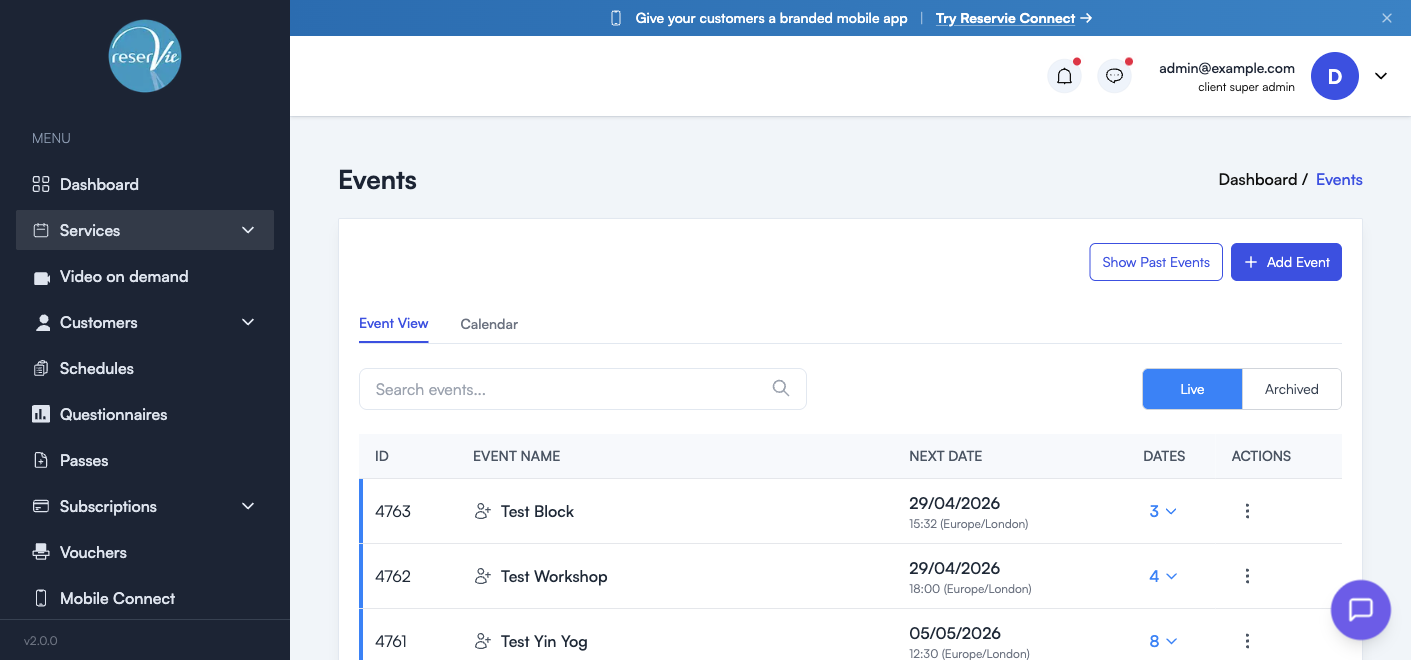
The Services → Events page is the home for everything you’ve created. It has two views and a couple of useful filters.
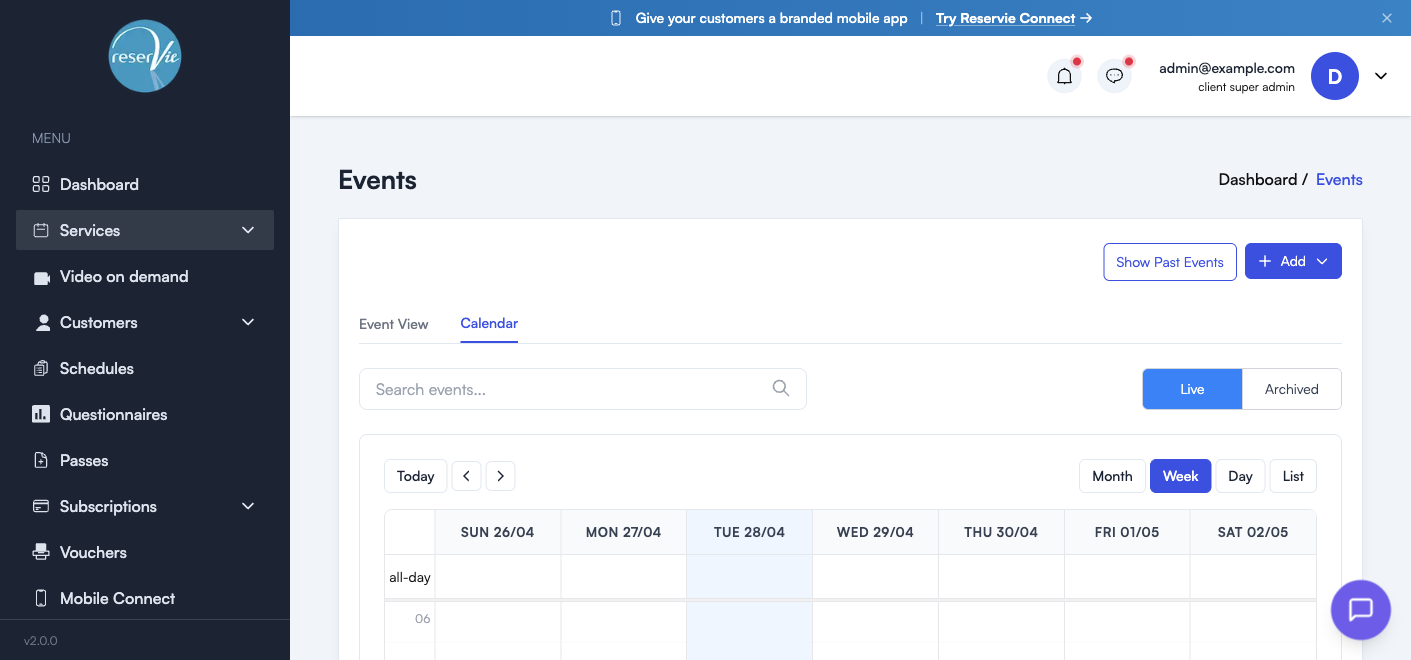
Event View vs Calendar
| View | What it shows |
|---|---|
| Event View | A table of every event with ID, name, next upcoming date, total dates, and a per-event actions menu |
| Calendar | A calendar grid (Day / Week / Month / List) showing every scheduled date as a slot you can click into |
Use Event View when you want to manage the events themselves (edit, archive, clone). Use Calendar when you want to see what’s actually running on a given day.
Live vs Archived
The Live tab shows events that are currently published and bookable. Archived shows events you’ve archived — still in your account but no longer offered to customers. You can restore an archived event at any time.
Show Past Events
By default the list hides events whose last date has already passed. Click Show Past Events to include them in the table — useful for reviewing attendance, exporting registers, or cloning a previous run.
Search
The search box filters the visible list by event name as you type.
What you can do with an event
From the action menu (the three dots) on any row in Event View, you can:
| Action | What it does |
|---|---|
| Edit Event | Open the event editor (the same wizard used for creating) with current settings pre-filled |
| Clone | Duplicate the event — useful for next term’s run, or for creating a near-identical sister event |
| Archive | Move the event to the Archived tab so it’s no longer bookable |
The Dates column shows how many dates are scheduled for the event. Clicking it expands the row to show every individual date with its time, timezone, duration, and a link to the Register for that date.
What sits alongside Events
Events use four pieces of reusable configuration. You manage them as separate sections under Services, then attach them to events in the editor:
| Section | What it’s for |
|---|---|
| Categories | Group events into types (e.g. Yoga, Pilates, Workshops) so customers can browse and filter |
| Locations | Save physical venues with their address so you don’t re-enter them on every event |
| Terms | Create event-specific terms and conditions shown to customers at checkout |
| Payment Rules | Apply automatic discounts based on how many dates or places are booked together |
All four are explained in Event Configuration.
Where to go next
- Creating your first event? See Creating and Editing Events for a walkthrough of the 4-step wizard.
- Managing bookings? See Managing Event Registrations for the register, attendees, waiting lists, refunds, and contacting customers.
- Setting up the supporting bits? See Event Configuration.